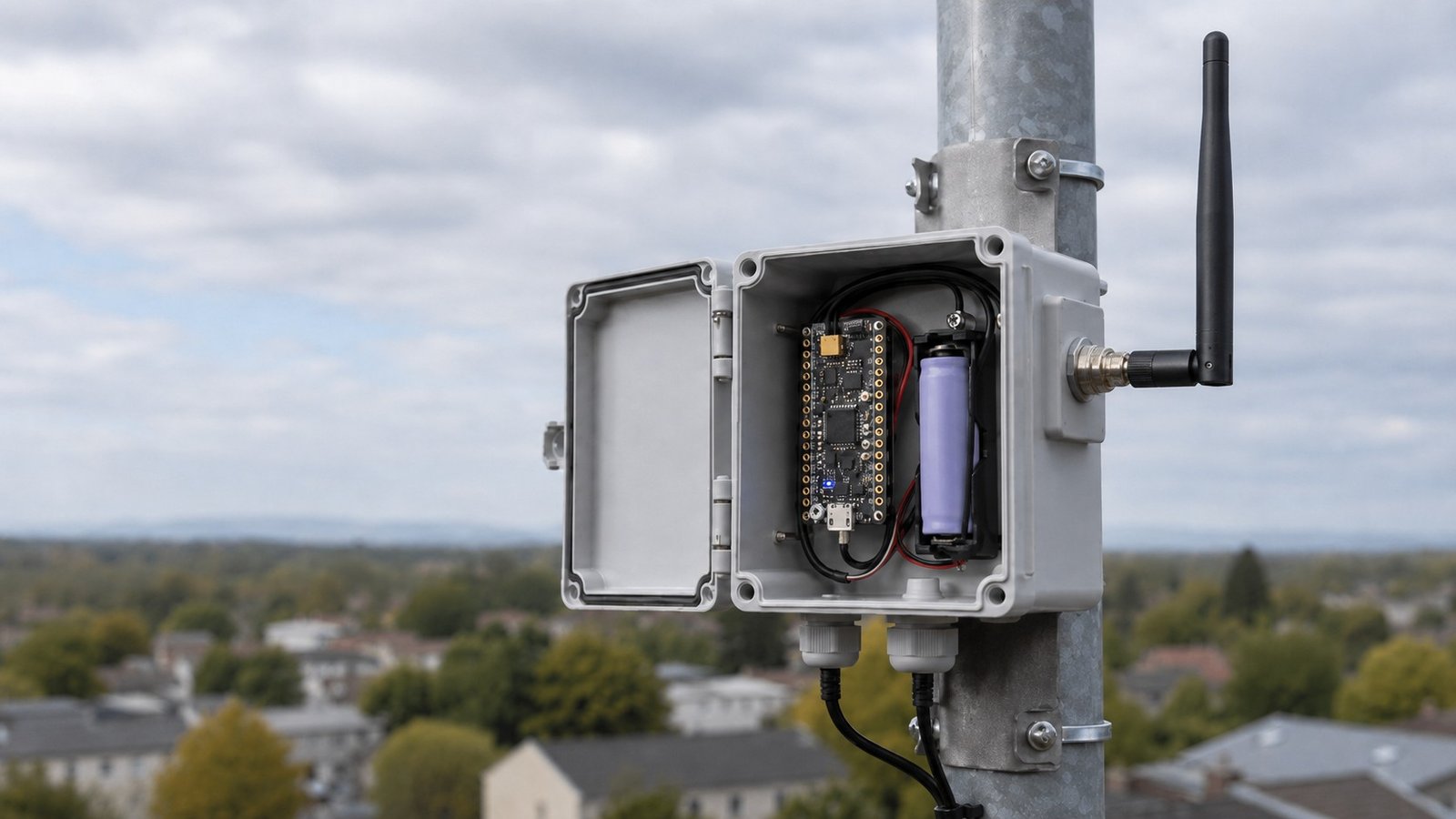
A MeshCore repeater is one of the easiest ways to improve a MeshCore network once your basic devices are already working.
If your MeshCore nodes are too far apart, blocked by terrain, or struggling to reach each other through buildings and trees, a repeater can help bridge that gap. Instead of being the device you use to send and receive messages directly, it sits somewhere useful and helps forward MeshCore traffic through the network.
For a lot of DIY radio setups, the repeater becomes the fixed high point in the system. The better the repeater’s position, antenna setup, and radio settings, the more useful it can be.
The useful starting point is choosing the right firmware role, then getting one supported board flashed, configured and tested before it goes somewhere hard to reach.
If you already know which board you have, the quick version is: connect the antenna, plug the board in with a USB data cable, open the MeshCore Web Flasher, choose your exact board, select the Repeater firmware, flash it, then use Configure via USB / Repeater Setup to finish the configuration. The full process is further down the page.
What Is a MeshCore Repeater?
MeshCore is an off-grid communication system built around LoRa radio hardware.
It is mainly used for text-based communication over a local radio network, without needing mobile coverage, Wi-Fi, or the internet for the actual LoRa mesh.
A MeshCore repeater is a dedicated device that helps forward packets through the network. Its job is not to be your main chat device. That job normally belongs to a companion device, which connects to your phone, computer, or app.
A repeater has a simpler purpose. It stays online, listens for MeshCore traffic, and helps other devices reach each other. This makes it useful when you want better range, stronger coverage, or a fixed relay point between weak areas.
A repeater still needs compatible radio settings with the rest of your MeshCore network. The simplest approach is to use the same regional preset on every device, which keeps the required frequency, bandwidth and spreading factor aligned. Coding rate is a little different and does not have to be identical when MeshCore is using LoRa’s normal explicit headers.
If the repeater is using the wrong radio settings, your other devices may not hear it at all.
MeshCore Companion vs Repeater vs Room Server vs Sensor Node
MeshCore has a few different firmware roles. This is one of the first things worth understanding before you flash a board, because the same general style of LoRa hardware may support different MeshCore firmware builds.
You still need to flash the correct firmware role for the job.
Companion
A companion is the user-facing device. This is the device you normally connect to from a phone, computer, or web client.
Use a companion when you want to send messages, receive messages, manage contacts, or interact with the mesh directly.
Repeater
A repeater is a relay device. Its job is to sit somewhere useful and help forward MeshCore packets.
You do not normally use a repeater as your main chat device. You flash it, configure it, place it, and test that it is helping the network.
Room Server
A room server is a more advanced MeshCore role.
It is used for room or server-style network behaviour, where messages can be stored and retrieved in a different way to normal direct messaging.
For a beginner setup, I would not start here. Get a companion working first, then add a repeater. Once you understand those two roles, a room server will make more sense.
Sensor Node
A Sensor Node is used for remote telemetry rather than normal chat or relaying. It collects sensor data and makes that data available across the MeshCore network.
The setup is different from the repeater workflow in this guide. Sensor Node builds are currently developer-oriented and are normally compiled in PlatformIO rather than selected as a standard role in the normal MeshCore Web Flasher.
Do You Need a MeshCore Repeater?
You probably want a MeshCore repeater if you are trying to improve range or coverage.
A repeater is worth using when:
- you want better range between two areas
- hills, buildings, trees, or distance are causing weak links
- you want a fixed node that can stay online most of the time
- your devices cannot reliably hear each other directly
- you are building a local community mesh
- you want to improve the reliability of your MeshCore setup
You may not need one yet if:
- you only have two nearby devices
- you are still testing everything on the bench
- your companion devices already reach each other reliably
- you have not confirmed your basic MeshCore setup works
- you do not have a useful place to mount the repeater
My usual approach is to get two companion devices working first. Once you know your basic MeshCore setup works, then add a repeater to improve the network.
That makes troubleshooting much easier. If you flash everything at once and nothing works, it becomes harder to know whether the issue is the firmware role, radio settings, antenna, location, or configuration.
What Hardware Do You Need?
To flash and run a MeshCore repeater, you only need a few basic parts.
For a first test, keep the setup simple. Flash the board, configure it, test it locally, and only then start thinking about permanent mounting, batteries, solar, or weatherproof enclosures.
Supported LoRa Board
You need a supported LoRa board that has MeshCore repeater firmware available for it.
Common MeshCore-style hardware includes boards from Heltec, LilyGO, RAK Wireless, Seeed Studio, and other LoRa hardware makers.
The exact board matters. A Heltec V3 and Heltec V4 are not the same thing, and a board with a similar name may still need a different firmware target.
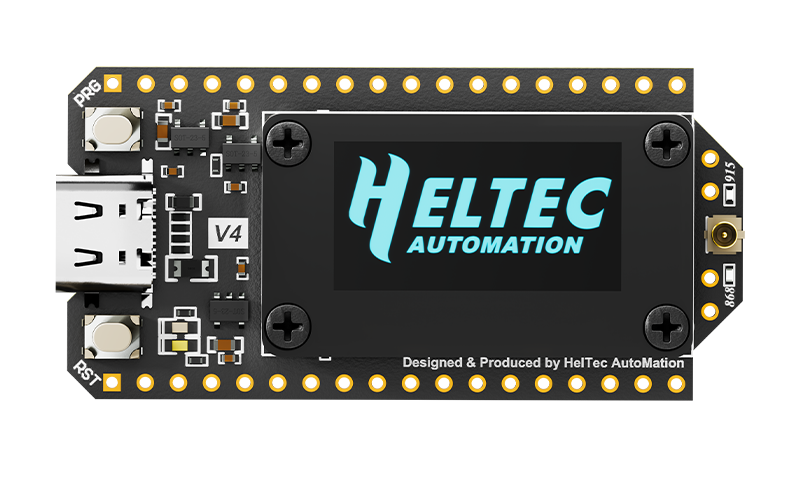
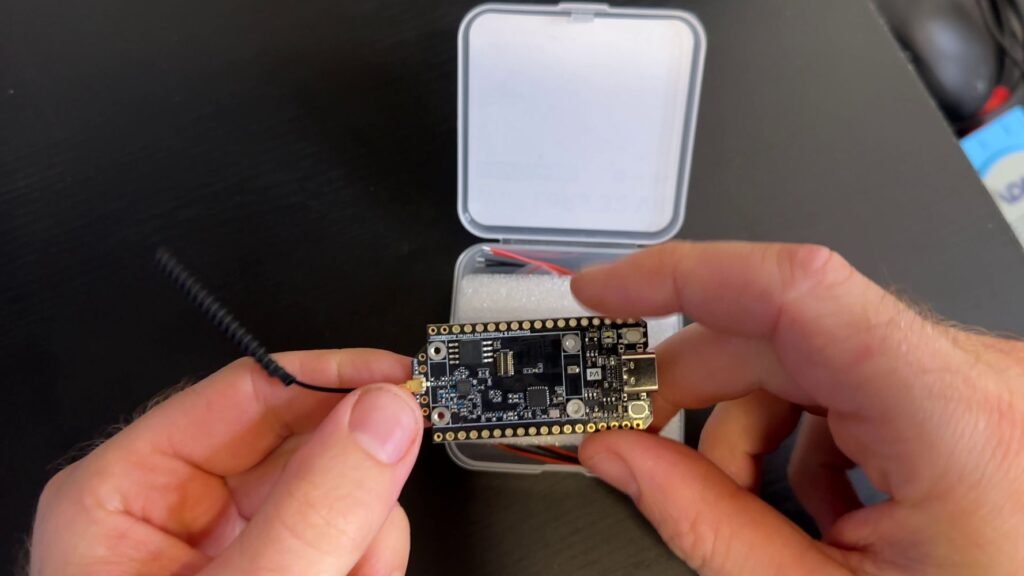
If you are building a Heltec V4 MeshCore repeater, make sure the flasher or firmware release supports your exact Heltec V4 variant. Take a moment here to choose the exact board target shown in the MeshCore Web Flasher.
Heltec V4
A good pick for newer MeshCore builds if you want a compact LoRa board with an OLED screen, Wi-Fi and USB-C.
Correct LoRa Antenna
Use the correct antenna for your board and frequency.
For example, a board used on 915 MHz should use a suitable 915 MHz antenna. A board used on 868 MHz should use a suitable 868 MHz antenna.
Always connect the antenna before powering or transmitting with a LoRa board. Running a LoRa board without an antenna connected is bad practice and can damage the radio output stage, especially when the device transmits.
USB Data Cable
Use a proper USB data cable.
A lot of random USB-C or micro-USB cables are charge-only cables. They may power the board, but the computer will not see the serial device.
If the MeshCore Web Flasher cannot see your board, the USB cable is one of the first things to check.
Computer and Web Serial Browser
The MeshCore Web Flasher runs in the browser and talks to your board over USB serial.
Use a Web Serial compatible browser such as Chrome or Edge. Other browsers may not work properly for Web Serial flashing.
Optional Extras for a Permanent Repeater
For a permanent repeater, you may also want:
- weatherproof enclosure
- battery or solar power setup
- mounting bracket or pole
- external antenna cable, if needed
- cable glands and strain relief
- moisture control
You do not need all of this for a basic bench test. Get the repeater working first, then build the permanent setup around it.
Before Flashing Your MeshCore Repeater
Before you flash the board, run through this quick checklist:
- confirm the exact board model
- connect the correct LoRa antenna
- use a USB cable that supports data
- use Chrome or Edge for the Web Flasher
- choose the Repeater firmware role
- know your region and radio settings
- write down any important settings if you are reflashing an existing device
The most common problems are usually simple: the wrong board target, the wrong firmware role, a charge-only USB cable, no antenna connected, or radio settings that are not compatible with the rest of the network.
Checking those first can save a lot of time.
Important: do not use the Web Flasher’s Erase device option just to update MeshCore firmware. A full erase removes the MeshCore identity and settings for that device. Only use it when you intentionally want to wipe the device and start over.
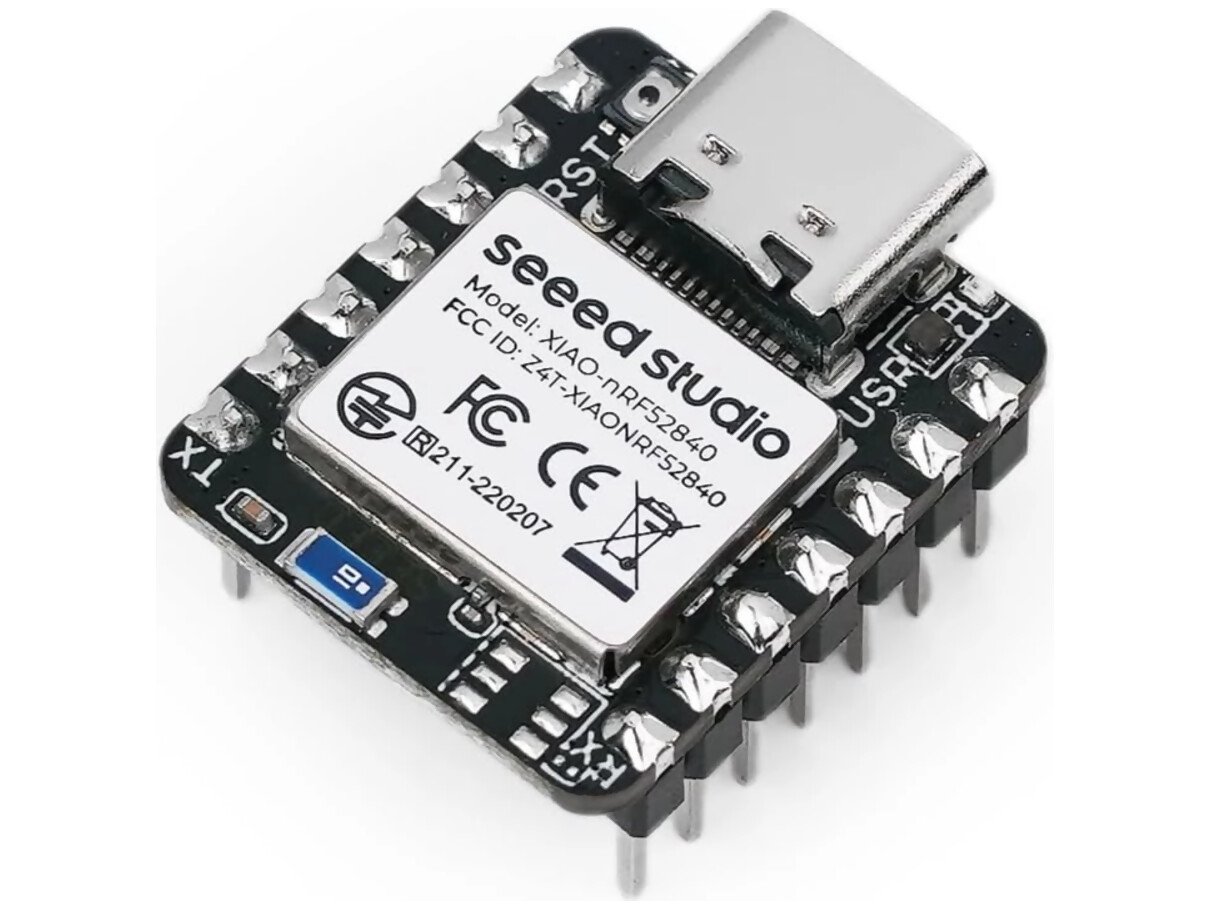
Seeed XIAO nRF52840 + Wio SX1262
A compact modular LoRa setup for custom MeshCore builds, combining the low-power XIAO nRF52840 with a Wio SX1262 LoRa module.
How to Use the MeshCore Web Flasher to Flash a Repeater
The exact flashing process can vary depending on the board, but the general flow is the same.
Some boards flash normally as soon as they are connected. Others may require bootloader mode, DFU mode, holding BOOT, pressing RESET, double-tapping RESET, or selecting a UF2 drive.
Follow the flashing process for your exact board.
Step 1: Connect the Antenna
Before plugging the board in, connect the correct LoRa antenna.
This is especially important if the board may transmit after flashing or during testing.
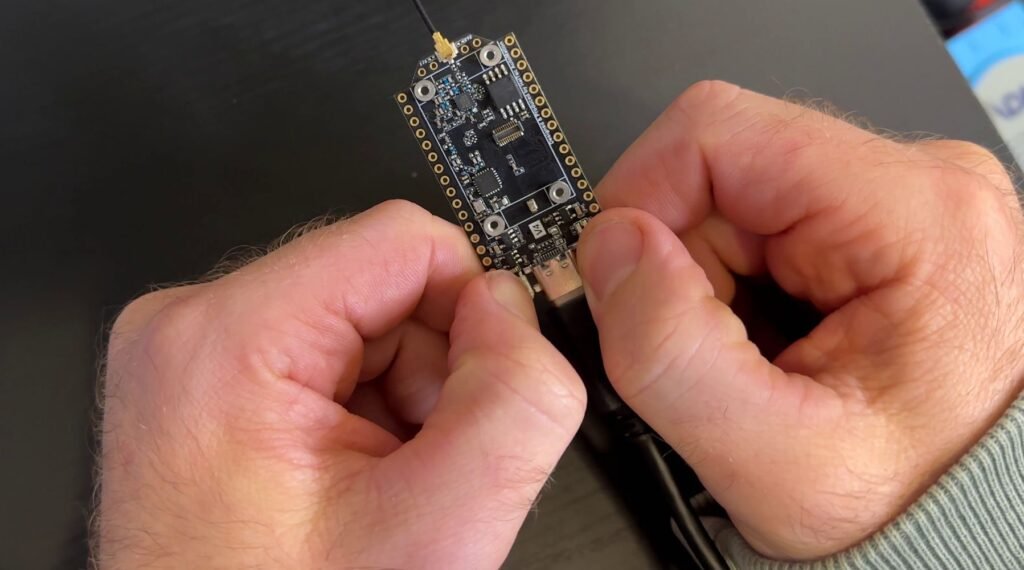
Step 2: Plug the Board Into Your Computer
Use a proper USB data cable and plug the board directly into your computer if possible.
Avoid USB hubs, long cables, or loose connectors while troubleshooting. Wait a few seconds for the board to appear as a serial device.
Step 3: Open the MeshCore Web Flasher
Open the MeshCore Web Flasher in Chrome or Edge.
The Web Flasher lets you install MeshCore firmware directly from the browser without compiling the firmware yourself.
If the browser asks for permission to access the serial port, allow it.
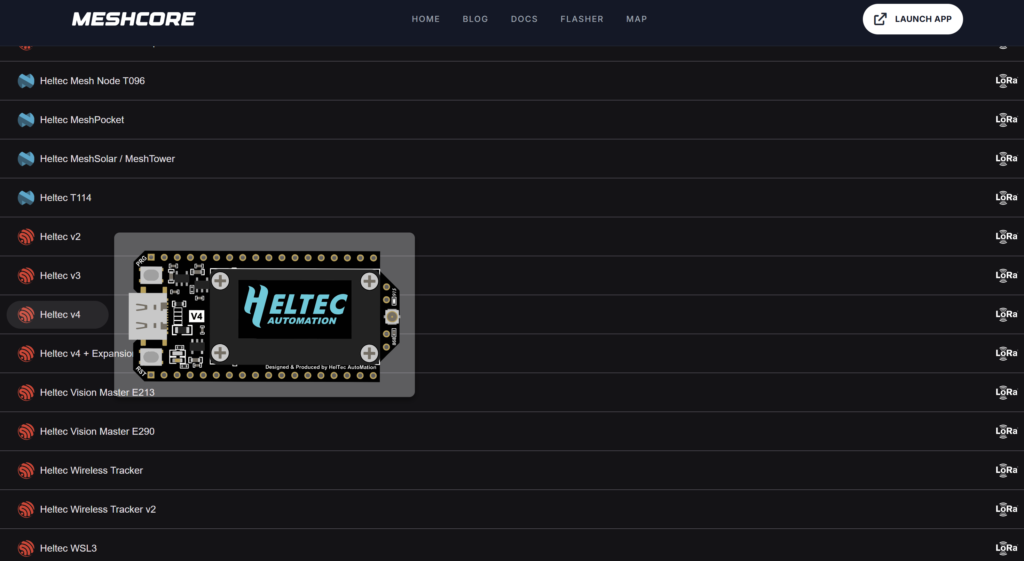
Step 4: Select the Correct Board Model
Choose the exact board model from the flasher.
Take your time on this step. If you have a Heltec V4, choose the Heltec V4 target that matches your board variant. If you have a LilyGO, RAK, Seeed, or another supported board, choose the matching target for that board.
Step 5: Choose the Repeater Firmware
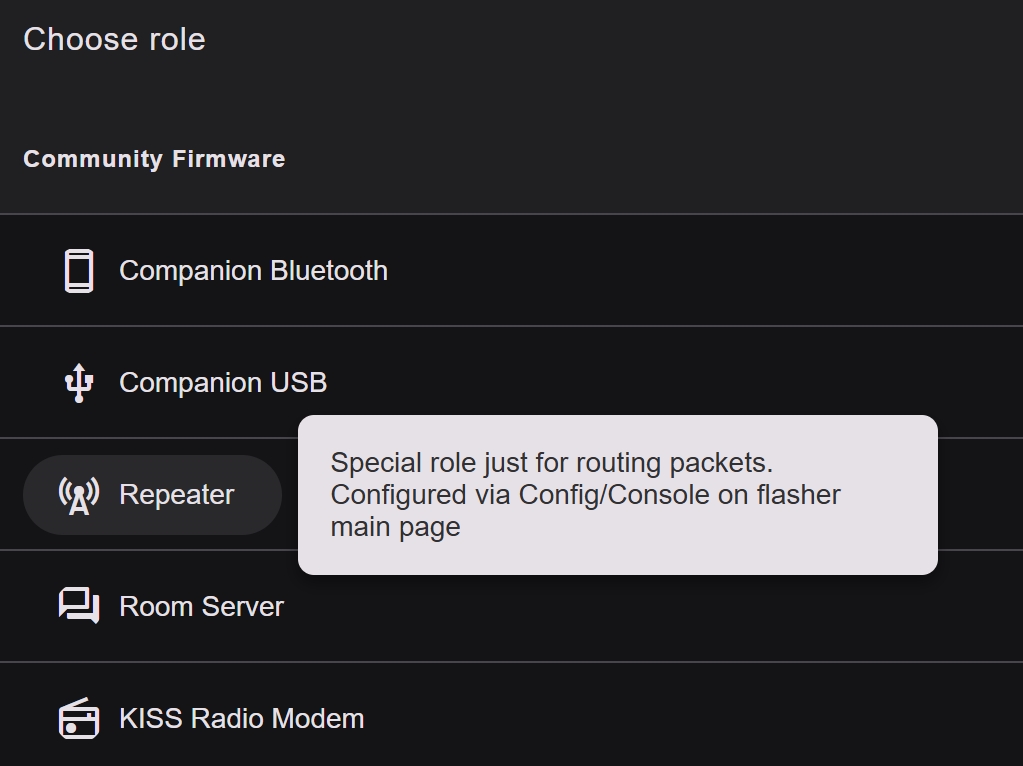
Select the Repeater firmware role.
MeshCore has different firmware roles, so make sure you are flashing the repeater build. If you accidentally flash companion firmware, the device will not behave like a dedicated repeater.
Step 6: Put the Board Into Flashing Mode if Needed
Some boards need to be put into a specific flashing mode before the browser can install firmware.
Depending on the board, this may involve:
- holding BOOT while plugging in USB
- holding BOOT and pressing RESET
- double-tapping RESET
- selecting a UF2 drive
- using a board-specific DFU process
If the flasher cannot connect, check the flashing method for your exact board.
Step 7: Start the Flash Process
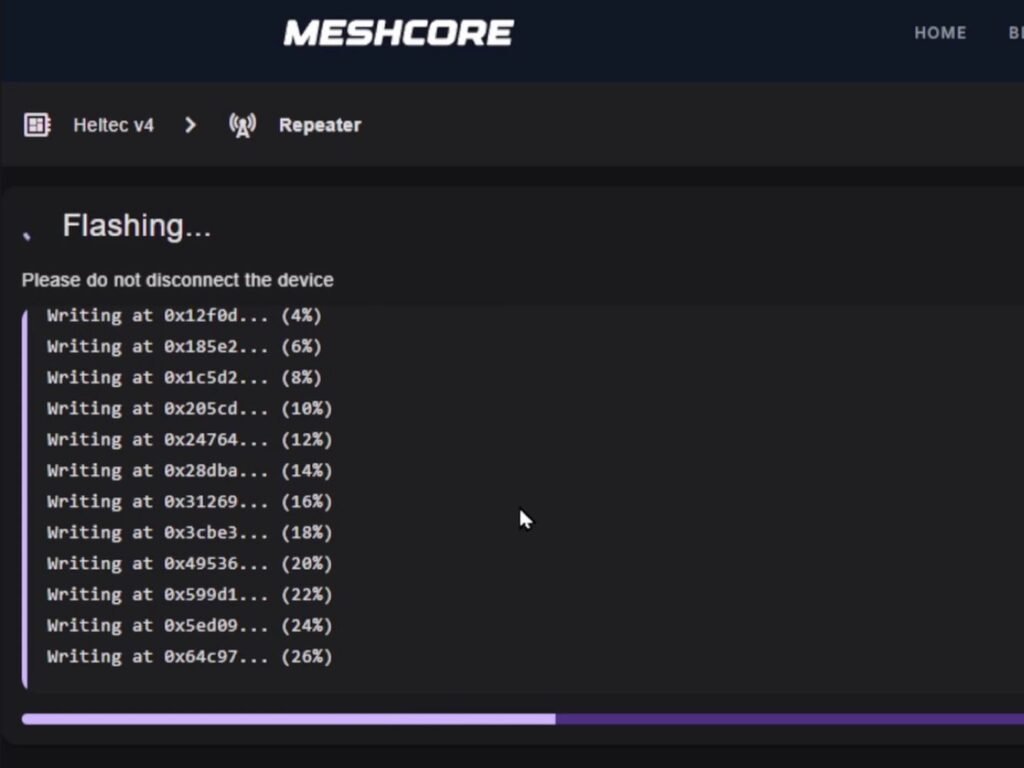
Start the flash process in the Web Flasher.
Keep the board connected while flashing and avoid refreshing the page or moving the USB cable until the process finishes.
Step 8: Reboot the Device
After flashing finishes, reboot the board.
Depending on the board, this may mean pressing RESET, power cycling it, or letting the flasher restart it.
Once the device has rebooted, use the Web Flasher’s Configure via USB / Repeater Setup option to open the repeater configuration interface. From there you can set the device name, radio preset, location, admin password and other repeater settings before deployment.
Basic Repeater Configuration After Flashing
Flashing installs the firmware. Configuration is what makes the repeater useful.
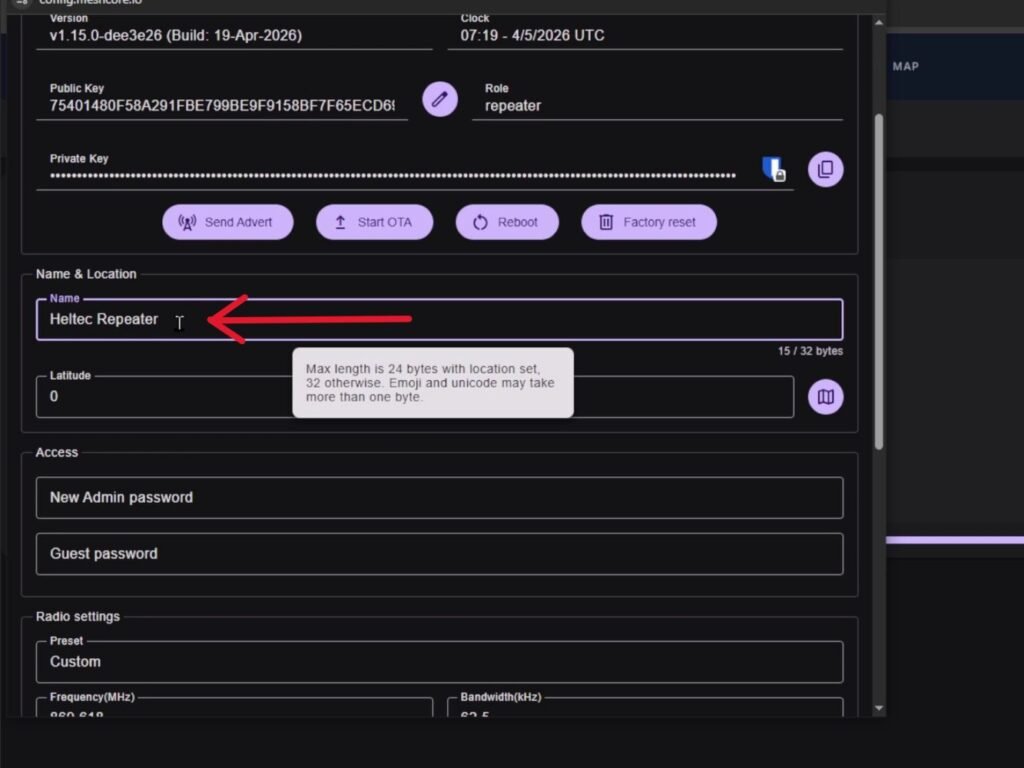
The easiest way to configure a newly flashed repeater is through MeshCore’s USB repeater setup interface at config.meshcore.io. Use it to set the device name, regional radio preset, location, admin password and other repeater options. You can also send an advert, reboot the device and manage configuration from the same interface.
Set a Clear Device Name
Give the repeater a clear name so you can identify it later.
This is especially useful once you have more than one MeshCore device. Avoid vague names that will confuse you later.
A simple name is fine as long as you know what device it refers to.
Select the Correct Regional Radio Settings
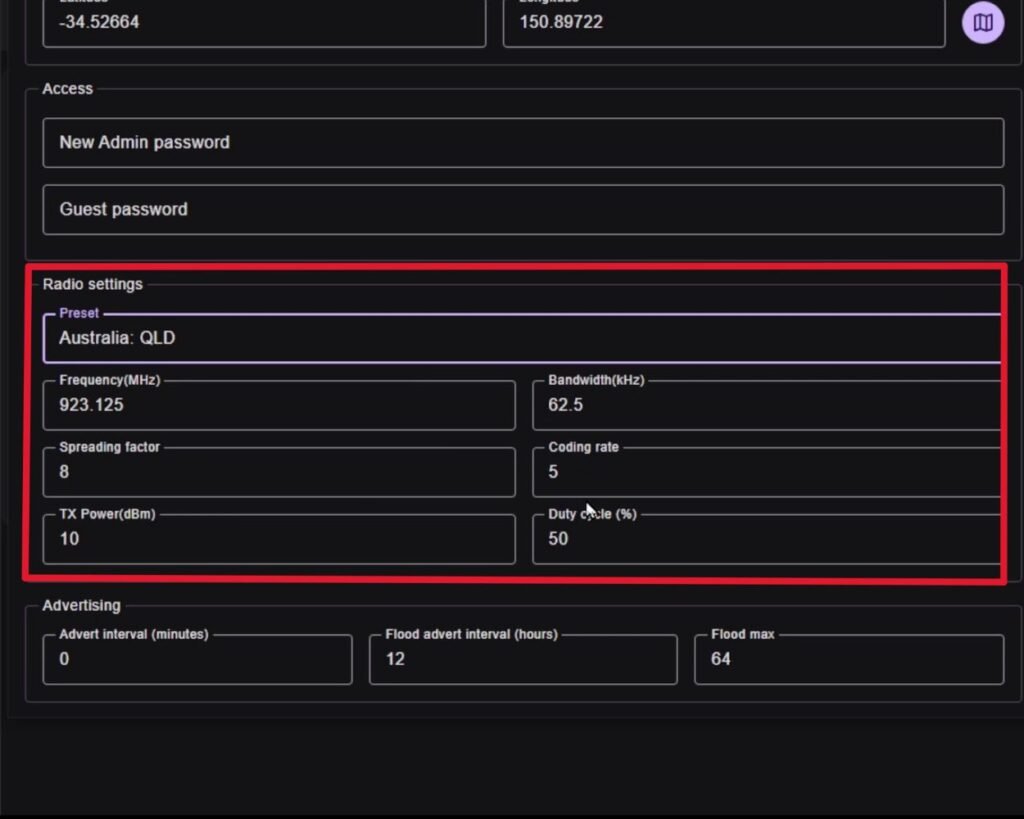
Your repeater needs to use radio settings that are compatible with the rest of your MeshCore network. The easiest way to do that is to use the same regional preset.
Check the:
- region and radio preset
- frequency
- bandwidth
- spreading factor
If the required receive settings do not line up, the repeater may power on normally but still be invisible to your other devices.
Coding rate does not need to match in the same way when explicit LoRa headers are being used. Transmit power is also independent, so set that for your hardware, local rules and the coverage you actually need.
After changing radio settings, reboot it and test again.
Set Admin and Security Settings
Change the repeater’s default admin password before deployment, especially if the device will be public, semi-public, or mounted somewhere difficult to access.
MeshCore repeaters use password as the default admin password, so leaving it unchanged is not a good idea. Set a unique password while the repeater is still on the bench and store it somewhere you can recover later.
Set Location Only if You Are Comfortable Sharing It
Location can be useful for mapping and network planning, but it is worth thinking about before you enable it.
If you do not want the repeater’s exact location shared, avoid setting an exact location. For public or semi-public repeaters, an approximate location may be a better option.
Send an Advert or Make It Discoverable
Repeaters periodically send an advert so other MeshCore devices can learn about them, and you can also send one manually from the repeater setup interface when testing.
After configuration, use Send Advert and check that your companion can see the repeater. If it still does not appear, confirm that both devices are using compatible radio settings before changing anything else.
Sync the Clock if Required
Some MeshCore workflows rely on time being correct.
If your repeater has been completely flat or disconnected for a long time, check the time if something seems odd. This can be especially relevant for battery or solar-powered repeaters that have fully drained.
Test Before Permanent Mounting
I would not mount the repeater permanently until I have seen it working from another MeshCore device first.
A basic test loop looks like this:
- Configure the repeater.
- Reboot it.
- Send an advert or discover it.
- Check that it appears from a companion device.
- Move it to a better position.
- Test again.
It is much easier to fix a setting, cable, antenna, or power issue while the board is still sitting on the bench.
Check Remote Management Before Mounting It
MeshCore repeaters can be administered remotely over LoRa through a companion device, which is useful once the repeater is mounted on a roof, pole or other hard-to-reach location.
Before permanent installation, confirm that you can reach the repeater remotely and that you have the correct admin password. It is much easier to sort this out on the bench than after the enclosure has been installed.
Where Should You Place a MeshCore Repeater?
Placement matters more than most people expect.
Location can matter more than the board itself. A basic board in a good spot can often perform better than a better board placed low indoors.
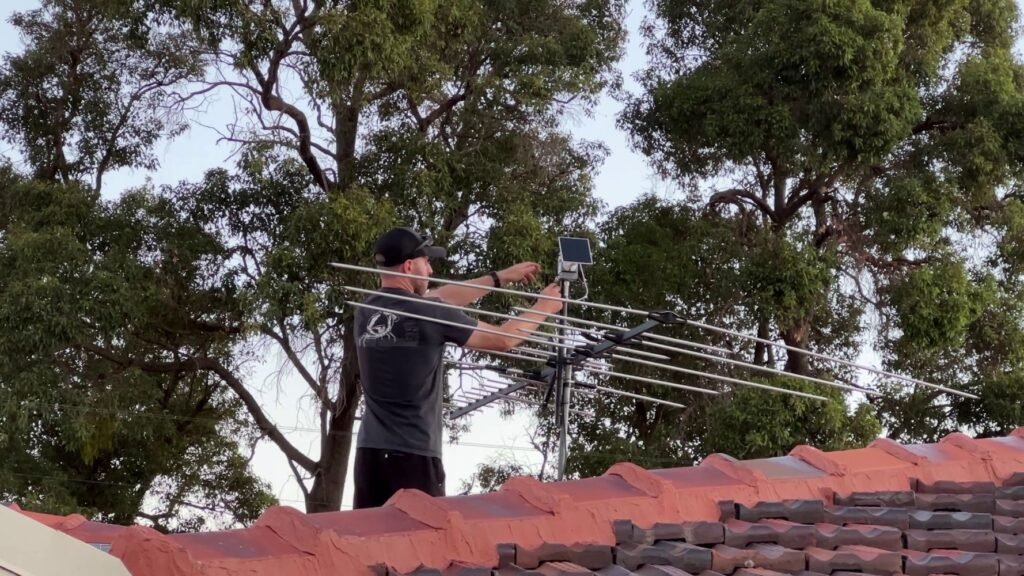
Height Usually Helps
A repeater mounted higher will usually have a better chance of hearing other nodes than one sitting low indoors.
LoRa does not need perfect line of sight, but it still benefits from a cleaner radio path. Buildings, metal sheds, hills, thick trees, and terrain can all reduce performance.
Range depends on the antenna, terrain, height, radio settings, and local noise. Exact range claims from someone else’s setup are not always useful unless your terrain and installation are similar.
Keep the Antenna Clear
The antenna position matters.
For many small vertical antennas, vertical mounting is the normal starting point. Avoid placing the antenna inside a metal box, hard against metal, or behind large obstructions if performance is poor.
Small changes in antenna position can make a noticeable difference.
Avoid Obvious RF Noise Sources
If performance seems poor, try moving the repeater away from obvious sources of interference.
This can include:
- nearby transmitters or other RF equipment
- poorly shielded electronics or cabling
- solar inverters
- switch-mode power supplies
- large electrical equipment
- metal enclosures or other nearby metal that can affect the antenna
You do not need to overthink this, but it is worth moving the repeater away from obvious sources of noise if performance is poor.
Move it, test again, and compare the result.
Use a Suitable Enclosure Outside
If the repeater is mounted outside, protect it properly.
Use a weather-resistant enclosure, cable glands, and sensible strain relief. Also think about condensation, because a sealed box can still collect moisture if warm, humid air gets trapped inside.
For outdoor builds, moisture control can matter just as much as rain protection.
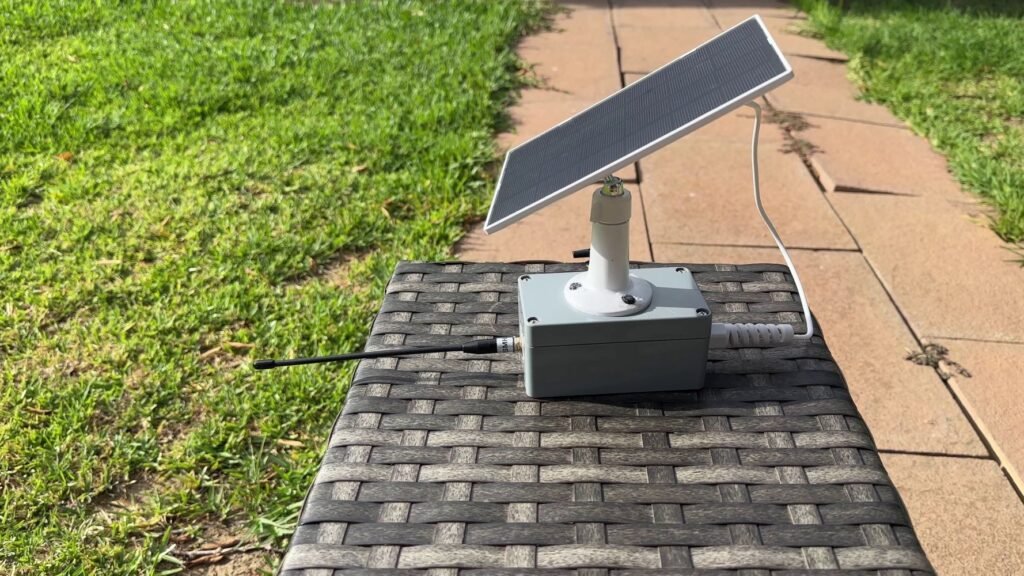
Test Solar Repeaters Before Relying on Them
A solar MeshCore repeater is a great project, but test it properly before mounting it somewhere hard to access.
Check:
- idle power draw
- transmit power settings
- battery capacity
- solar input
- charging behaviour
- overnight battery drop
- cloudy weather performance
- recovery after a full battery drain
A solar repeater might work well in good sun but still fail after a few poor days.
Test it for several real days and nights before relying on it.
Common MeshCore Repeater Problems
Most MeshCore repeater issues are caused by simple problems.
Start with the basics before assuming something complicated is wrong.
Browser Cannot See the Device
If the Web Flasher cannot see the board, start with the USB cable.
A lot of USB-C and micro-USB cables are charge-only. The board may power up, but your computer will not see it as a serial device.
Also check:
- Chrome or Edge is being used
- the board is in the correct flashing mode
- the USB port is working
- the board does not need extra drivers
- nothing else is using the serial port
Trying another USB cable is often the fastest test.
Flash Fails Partway Through
If flashing starts but fails, put the board back into bootloader or flashing mode and try again.
Also try a shorter USB cable, a different USB port, and closing any other serial tools. Keep the board and cable still while flashing.
Once the flash completes successfully, reboot the board and continue with configuration.
Wrong Board Selected
If you selected the wrong board target, reflash with the correct one.
There is no point spending too much time troubleshooting radio settings if the wrong firmware target was used. Start again with the exact board model and repeater firmware.
Device Powers On but Does Not Appear in MeshCore
If the device powers on but does not appear in your MeshCore setup, check:
- firmware role
- board target
- region
- frequency
- bandwidth
- spreading factor
- antenna connection
- distance
- advert or discovery settings
- whether the repeater has been configured after flashing
A device can power on normally and still not communicate with your network if the firmware role or radio settings are wrong.
Repeater Works on the Bench but Not Outside
If the repeater works indoors but not in its final position, the issue is probably placement, power, or antenna setup.
Check the battery voltage, antenna connection, antenna position, enclosure material, line of sight, nearby metal, and nearby noise sources.
If it is solar powered, confirm that the panel and battery can support the real power draw. A device turning on during the day does not always mean the solar setup is keeping up properly.
Battery-Powered Repeater Dies Quickly
If the repeater drains faster than expected, check:
- battery health
- battery capacity
- board power draw
- power-saving settings
- transmit power
- solar panel size
- charger behaviour
- weather conditions
- overnight voltage drop
Some boards are better than others for permanent low-power use. A board may be easy to flash and test, but that does not automatically make it the best choice for a long-term remote repeater.
Test the real-world power draw before committing to a permanent install.
What I test after flashing
Once the repeater is working, you can start testing real coverage instead of just flashing boards on the bench. That is the part I find most useful with MeshCore, because small changes in height, antenna position, and location can make a noticeable difference.
FAQ
What is a MeshCore repeater?
A MeshCore repeater is a supported LoRa device flashed with MeshCore repeater firmware.
Its job is to help forward MeshCore packets through the network and improve usable coverage.
Does a MeshCore repeater need internet?
No.
A MeshCore repeater does not need Wi-Fi, mobile data, or internet to repeat MeshCore LoRa traffic.
It works over LoRa radio as long as the devices are configured with compatible radio settings and are within usable range.
Can I use a Heltec V4 as a MeshCore repeater?
Yes, if your exact Heltec V4 variant is supported by the MeshCore firmware or flasher target you are using.
Always choose the correct board model and firmware role. A Heltec V3 build should not be flashed onto a Heltec V4.
Does a MeshCore repeater use Bluetooth or Wi-Fi?
A repeater mainly uses LoRa to participate in the MeshCore network.
For normal repeater setup, use USB serial through the MeshCore repeater setup interface. After deployment, supported repeater administration can be done remotely over LoRa through a companion device. Some ESP32-based boards may also use Wi-Fi for specific OTA workflows, but Wi-Fi is not required for the repeater to relay MeshCore traffic.
How high should I mount a MeshCore repeater?
As high as practical and safe.
Height usually helps because it improves the radio path. Antenna position, nearby obstructions, terrain, and local noise also matter.
Can a MeshCore repeater run on solar?
Yes, a MeshCore repeater can run on solar if the board, battery, charger, and panel are sized properly.
Test the real power draw, charging rate, overnight battery drop, and bad-weather performance before relying on it.
What is the difference between a MeshCore repeater and a companion?
A companion is the user-facing device you connect to from a phone, app, web client, or computer.
A repeater is a dedicated relay device used to extend network coverage. You usually chat through a companion, while a repeater sits somewhere useful and helps the network reach farther.
Disclaimer: This project is shared for educational purposes only. If you choose to build it, you do so at your own risk. Double-check wiring, follow safety guidelines, and never work on live circuits if you’re unsure.
Some of the links in this post may be affiliate links. If you buy through them, I may earn a small commission at no extra cost to you.
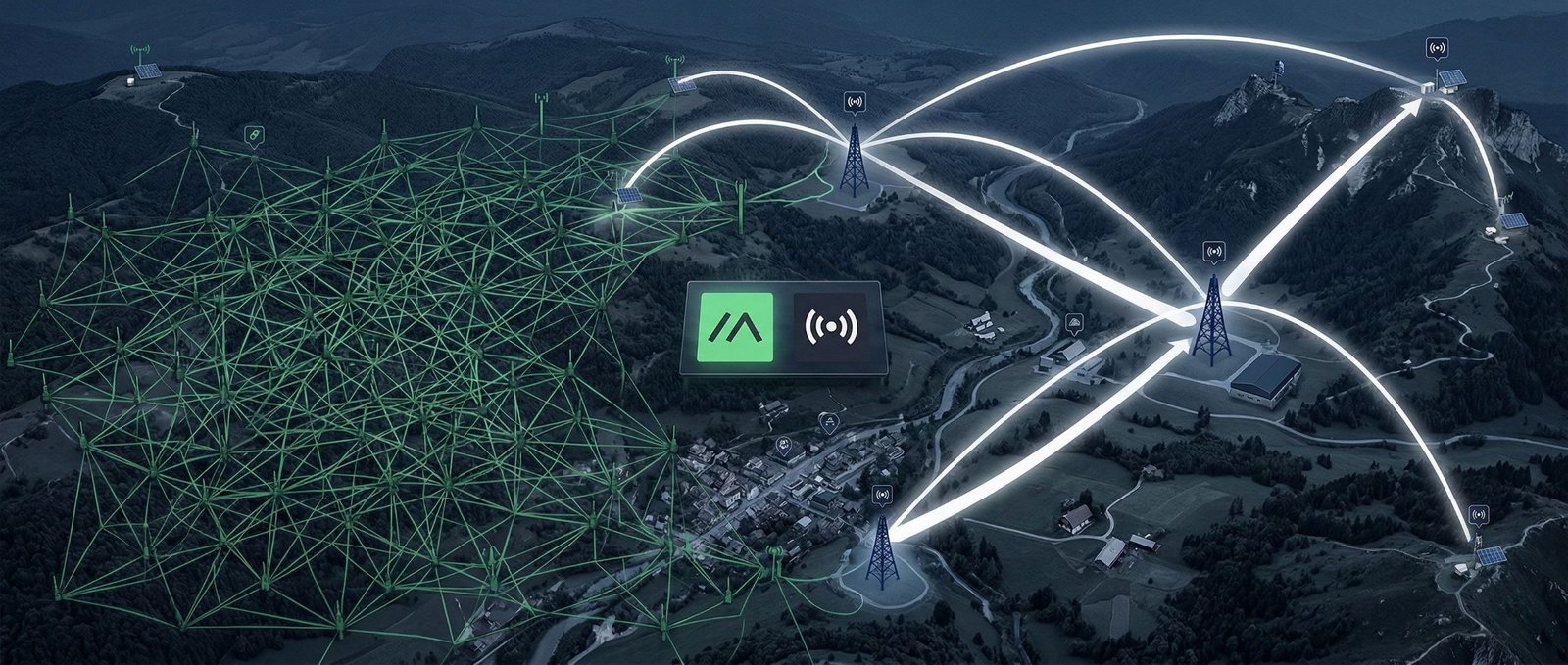
Best information I have found yet. There is no MeshCore in my area, planning to install a repeater and see if they will come. Was not sure of proper sequence of setting up repeater first or companion node. This information explained everything in precise order.
Thank you, I’m glad you found it helpful!
You didn’t mentioned
“sudo snap connect chromium:raw-usb”
for those who installed chromium with snap…
…and chromium won’t connect meshcore/meshtastic hardware like D5 Solar Power Kit with ESP32S3 or others