
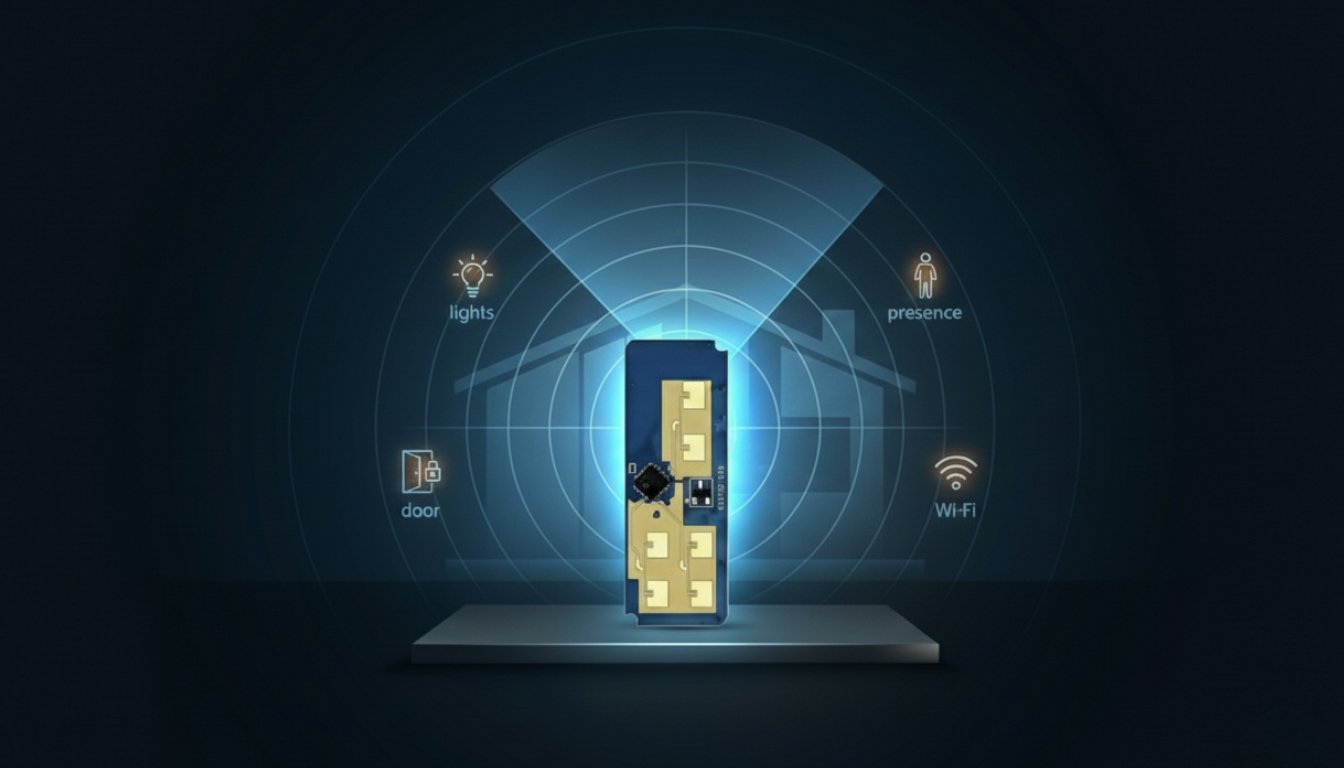
If you’ve ever had lights turn off while you’re sitting perfectly still, you already know the problem mmWave sensors are trying to solve.
Traditional PIR motion sensors only see movement. Sit on the couch too long, stop waving your arms, and as far as the sensor is concerned, you’ve left the room. A mmWave presence sensor is different: it can detect very small movements like breathing or slight shifts, so it knows you’re still there even when you’re not moving much.
More advanced mmWave radar modules can even pick up tiny chest movements and track breathing rate or heart-beat patterns at close range. For most smart home projects you’ll just use them for room presence, but it’s useful to know that the underlying tech is sensitive enough to handle those kinds of bio-signals too.
In this guide we’ll look at what mmWave sensors actually are, how they differ from PIR sensors, common modules you’ll see, and how to use a mmWave radar with an ESP32 for things like smart lighting and presence detection.
What is a mmWave presence sensor?
A mmWave presence sensor is a tiny radar module. Instead of looking for changes in heat (like a PIR), it sends out high-frequency radio waves (often around 24 GHz or 60 GHz) and listens for reflections.
By analysing how the reflected signal changes over time, the sensor can detect:
- That something is present
- Whether it’s moving or still
- Sometimes how far away it is, and even which zone of the room it’s in
For us, the important part is simple: a mmWave radar sensor can tell the difference between “empty room” and “person quietly sitting”, which is exactly what you want for presence-based automations.
mmWave vs PIR: why you’d pick mmWave
PIR motion sensors are great at what they do: they’re cheap, simple and good at detecting movement.
But they have a few downsides:
- They need visible movement to trigger.
- They can’t usually tell where in the room the motion is.
- They often have blind spots and limited range.
A mmWave sensor behaves differently:
- It can detect micro-movements, like breathing or small fidgets.
- Some modules give you distance and zone information, not just a binary “motion” output.
- The detection field is often more configurable (distance, sensitivity, hold times).
They also have their own quirks:
- They can “see” through some materials (thin plasterboard, plastic), which is sometimes a feature and sometimes a bug.
- They can be too sensitive out of the box, triggering on fans, curtains or people in the hallway.
That’s where tuning comes in.
Common mmWave modules you’ll see
If you search for mmWave radar sensor or mmWave presence sensor module, you’ll see a few familiar patterns.
Most DIY-friendly modules share these traits:
- A small PCB with an antenna area and a few header pins
- Power input (often 5 V, sometimes 3.3 V)
- A digital output pin that goes high when presence is detected
- A UART serial interface for configuration and more detailed data
Some popular modules also offer:
- Multiple zones with distance info (near, medium, far)
- Target coordinates in X/Y for more advanced setups
- Configurable parameters like distance, sensitivity and hold time stored on the module
From an ESP32 point of view, you can treat them in two ways:
- As a simple binary sensor using the presence output pin
- As a serial device that sends rich data you parse over UART
You can start with simple digital output and move to serial later if you need more detail.
How the data looks in practice
With many mmWave presence sensors, you get:
- A configurable presence output: “1” when something is detected, “0” when the area is clear.
- Optionally, distance zones: e.g. 0-2 m, 2-4 m, 4-6 m.
- Sometimes position data: X/Y coordinates of a target within the detection field.
For basic smart home use, the simple presence output is often enough. It becomes a binary_sensor in Home Assistant that you can use like any other motion sensor, just with fewer annoying dropouts when you sit still.
If you want more advanced behaviour, distance and zones can help you differentiate between someone at a desk versus someone walking past the door, or limit automations to “near-field” presence only.
Wiring a mmWave sensor to an ESP32
Typical connections depend on the module you’re using.
For modules with a simple OUT pin (digital presence output):
- Sensor VCC to 5 V or 3.3 V (check your module’s requirements).
- Sensor GND to ESP32 GND (common ground is critical).
- Sensor OUT (presence pin) to an ESP32 GPIO.
- Optional: Sensor TX/RX to ESP32 UART pins if you also want serial data.
For UART-only modules like the LD2450 (VIN / GND / TX / RX only):
- Sensor VIN to 5 V (or 3.3 V if the datasheet allows it).
- Sensor GND to ESP32 GND.
- Sensor TX to an ESP32 RX-capable GPIO.
- Sensor RX to an ESP32 TX-capable GPIO.
In ESPHome, the OUT pin becomes a binary_sensor when it exists. For UART-only boards, you read presence and position from the serial data instead.
Power is important here. Some mmWave modules are 5 V devices with 3.3 V logic on their output, others are 3.3 V all the way through. Double-check the datasheet so you don’t fry either the module or the ESP32.
Using mmWave presence with ESP32 and ESPHome
With ESPHome on an ESP32, the simplest setup is:
- Configure a GPIO as a binary sensor.
- Connect it to the presence output from the mmWave sensor.
- Expose it to Home Assistant as a presence or motion sensor.
From there, typical automations include:
- Turning lights on when presence is detected, off after a timeout when the room is empty.
- Keeping lights on as long as presence stays detected, instead of relying on motion.
- Syncing a smart plug or LED strip with the presence sensor in a specific zone.
Once you’re comfortable with that, you can move on to using the UART interface to pull in distance, zones or multiple targets if the module supports it. That’s where things like desk presence, bed presence or “only trigger if someone is near the sensor, not across the room” become possible.
Tuning mmWave sensors: distance, zones and hold times
Out of the box, a lot of mmWave sensors are set to “maximum everything”. They’ll happily detect motion across a large area and treat any micro-movement as a presence.
For room presence detection, that can be fine. For more targeted use, you’ll want to tweak:
- Maximum distance – how far the radar should look for targets.
- Sensitivity per zone – how easily it should trigger for near vs far zones.
- Hold time – how long it should continue reporting presence after the last movement.
- Target size or motion thresholds – if supported, to ignore tiny or slow changes.
These settings are normally changed either through:
- A vendor configuration app (often over Bluetooth or Wi-Fi from your phone), or
- Serial commands over UART from a USB adapter or the ESP32 itself.
A good workflow is:
- Install the mmWave sensor roughly where it will live.
- Use the app or a serial tool to view raw data while you walk around, sit, step out, etc.
- Adjust distance and sensitivity until it triggers in the areas you care about, but not in the hallway or next room.
- Set a reasonable hold time (for example 10-60 seconds) so your lights don’t flicker off immediately when you sit still.
Dealing with false positives
mmWave radars are powerful, but they can be a bit “too clever” if you don’t rein them in.
Common sources of false positives:
- People in adjacent rooms if the wall or door is thin.
- Fans, aircon, curtains or plants that move subtly.
- Pets walking through the detection field.
- Reflections off large metal objects in odd-shaped rooms.
Ways to reduce false positives:
- Limit the max distance so the sensor can’t see through to the hallway.
- Lower sensitivity in far zones or disable them completely.
- Combine the mmWave sensor with another input, like a door contact or a button, in your Home Assistant automations.
- Use automations that require sustained presence (e.g. presence must be detected for at least 5-10 seconds) instead of reacting instantly.
Sometimes it’s easier to let mmWave handle the “keep lights on while I’m sitting still” part, and let a PIR or door sensor handle “someone just entered the room”.
Dealing with missed detections
On the flip side, you can get false negatives where presence drops out even though someone is in the room.
Common causes:
- The sensor is mounted too far away and sensitivity is too low.
- The person is mostly shielded by furniture or glass.
- Zones or distances are configured too aggressively.
- The presence hold time is set too short, so it flicks between occupied and unoccupied.
To improve reliability:
- Start with more generous distance and sensitivity, then dial it back slowly.
- Aim the sensor so it has a clear path to the areas you care about (desk, couch, bed).
- Increase the hold time so the output doesn’t drop the instant micro-movements get small.
- In automations, allow some buffering: “only turn lights off if presence has been clear for at least X minutes”.
mmWave presence detection works best when you let the hardware detect movement and stillness, and let your automations make calmer decisions based on that signal over time.
Where mmWave presence + ESP32 makes the most sense
Good use cases for an ESP32 mmWave sensor include:
- Living rooms and media rooms, where people sit still and watch a screen.
- Home offices or desks, to keep task lighting on while you work.
- Bedrooms, where you want gentle, reliable presence detection (but tune it so it doesn’t see the hallway).
- Bathrooms and toilets, where PIR sensors can miss someone once they sit down or stand still.
Anywhere a normal motion sensor would annoy you by turning things off too early is a good candidate for mmWave.
Wrapping up
mmWave sensors give you a much smarter signal than traditional motion sensors. Paired with an ESP32, ESPHome and Home Assistant, they can turn your automations from “on/off based on movement” into “behave like the room actually knows someone is there”.
The basic pattern is straightforward:
- Wire power, ground, and a presence output (and UART if you want more data).
- Start with simple binary presence in ESPHome and Home Assistant.
- Tune distance, sensitivity and hold times to match the room.
- Add filters and logic in your automations to smooth out any remaining quirks.
Once you’ve tuned one mmWave sensor properly, you’ll start spotting all the places around your house where “real presence detection” makes more sense than yet another PIR on the wall.
FAQs About mmWave Sensors
A mmWave presence sensor uses 24 GHz or 60 GHz radar to detect tiny movements, like breathing or slight hand movements, instead of relying on big body motion like a normal PIR motion sensor. That means it can tell that you’re still in the room even if you’re sitting on the couch barely moving.
In Home Assistant, the mmWave sensor appears as one or more presence / occupancy entities. You can then use those entities in automations to turn lights on, control smart plugs, adjust climate, or trigger scenes when someone enters or leaves the room.
For most mmWave presence sensors, the best spot is:
- High on a wall or on the ceiling
- Pointing into the main area where people sit or walk
- With as few obstacles as possible (no big shelves or TVs directly in front)
These sensors usually have a cone-shaped detection area with a specific range and angle (for example, up to ~6 m range and 120° field of view on many HLK-LD2410/LD2450 based sensors). Check your module’s data sheet and then adjust the mounting height and tilt so the main occupied zones (desk, couch, bed, dining table) are inside that cone.
False “occupied” readings are a common issue and usually come down to tuning. A few things to try:
- Lower the sensitivity or maximum range so it doesn’t pick up movement in the hallway, next room, or street outside.
- Use zones (if your sensor supports them) to only monitor the area you care about, like the sofa or desk, and ignore doorways.
- Increase the timeout slightly so the sensor has to see presence for longer before flipping to “occupied”.
- Avoid mounting it against thin walls – mmWave can “see” through some materials, so it might be detecting people on the other side.
In Home Assistant you can also “debounce” the sensor by using helper entities, conditions, or delay-off automations so a single noisy reading doesn’t keep your lights on forever.
Yes – and that’s both a feature and a problem if you don’t tune it.
- Pets: Many mmWave sensors will see medium or large pets as presence, especially if they’re close to the sensor. You can sometimes reduce this by lowering sensitivity or adjusting zones so the detection area starts higher off the floor.
- Fans, curtains and other moving objects: Constant movement from fans or blowing curtains can look like motion. Again, reduce range, adjust angles, or move the sensor so those objects are outside the main detection zone.
- Through walls: Thin internal walls, doors or glass can let some of the signal through. If your sensor keeps detecting “ghosts”, it might be picking up people walking past in the next room or corridor. Rotating or relocating the sensor a little can make a big difference.
mmWave presence sensors use very low-power radio waves in the 24 GHz or 60 GHz bands. The output power is tiny compared to everyday devices like Wi-Fi routers or phones, and the modules are designed to meet regional RF regulations. They don’t record video or audio – they only report motion and distance data – so from a privacy point of view they’re much less invasive than a camera.
As with any electronic device, buy modules from reputable vendors, follow the wiring guidelines, and install them in line with your local electrical rules. For most home users, a mmWave presence sensor is considered safe for continuous use in living spaces.