E-paper displays are a great option for small projects where the information does not need to update constantly.
They are not fast like an LCD or OLED screen, but that is also part of the appeal.
Once an e-paper display refreshes, it can hold the image on screen without constantly redrawing it. That makes it useful for dashboards, labels, room displays, sensor readouts, and other slow-changing projects.
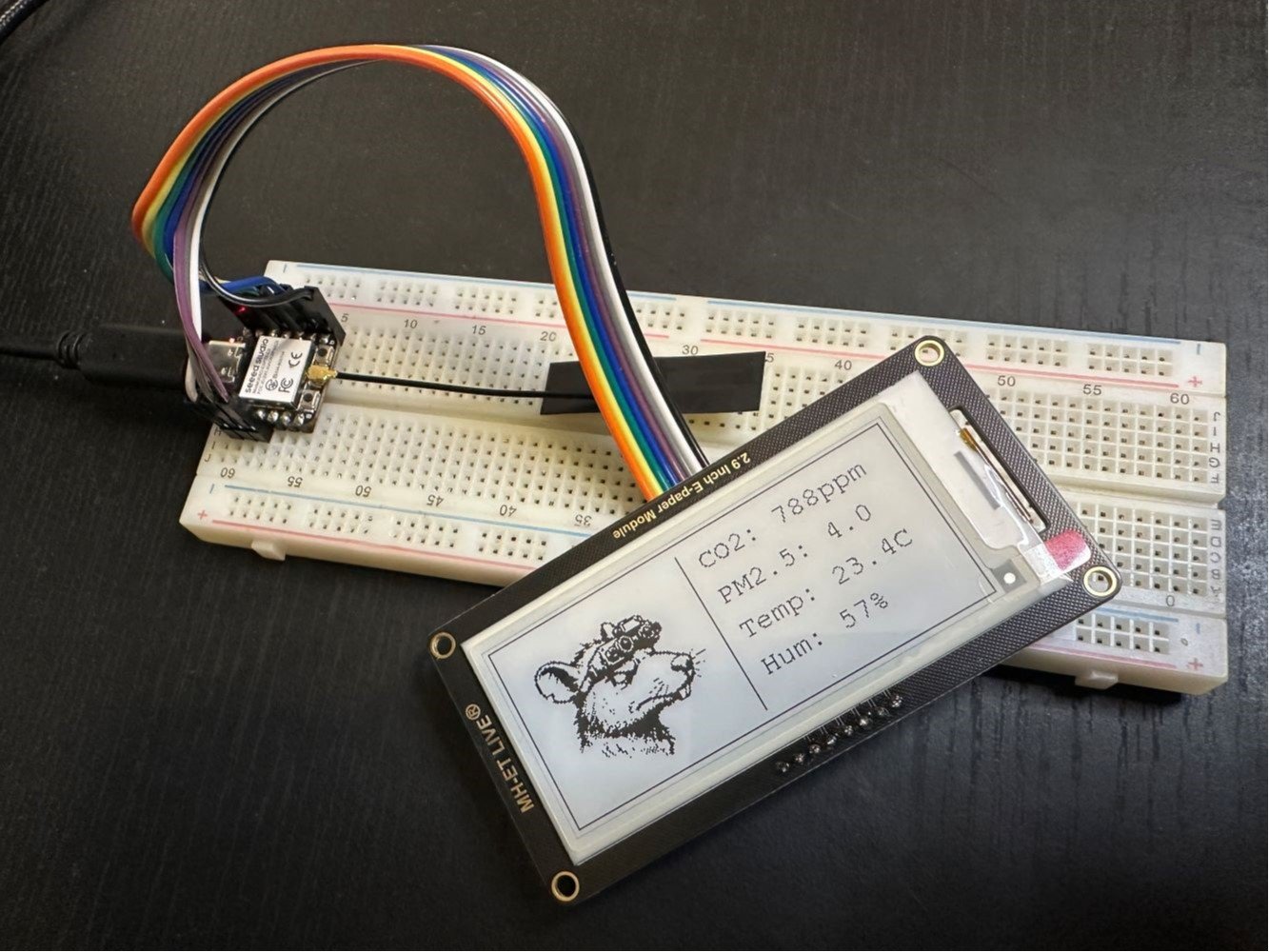
In this tutorial, I’m using an ESP32-C3 with a small SPI e-paper display. I’ll start with a simple text test, then move on to displaying MQTT data from my air quality sensor, and finally add a small logo using bitmap data.
The goal here is not to build the most polished dashboard straight away.
The goal is to get the basic pieces working first.
By the end, you should have a better idea of how to wire an e-paper display, test it with basic text, update it with live MQTT data, and add a simple image to the screen.
What Is an E-Paper Display Good For?
E-paper displays work differently to normal LCD or OLED screens.
With most displays, the screen is constantly being refreshed. With e-paper, the display updates much more slowly, but once the image is drawn, it stays there.
That makes e-paper a good fit for projects like:
- sensor dashboards
- Home Assistant status displays
- room information screens
- low-power projects
- labels
- weather displays
- air quality displays
- battery-powered devices
- simple notification panels
The trade-off is that e-paper is slow.
Most small e-paper displays are also black and white, or limited colour. They are not designed for animations, live graphs, fast menus, or values that change every second.
For something like air quality data, that is not really a problem.
Temperature, humidity, CO2 and PM2.5 readings do not need to update every second on a small display. Updating every minute, or even every few minutes, is usually enough.
That makes this a good use case for e-paper.
Parts Used
For this project, the hardware is fairly simple.
I used:
- ESP32-C3 board
- Small SPI e-paper display
- Jumper wires
- USB cable
- Arduino IDE
- GxEPD2 display library
Later in the tutorial, the ESP32-C3 also connects to Wi-Fi and subscribes to an MQTT topic so it can display data from my air quality sensor.
Your exact display may be different to mine, so one thing to be careful with is the display driver.
The wiring is usually straightforward, but the driver used in the code needs to match your actual e-paper display model. If the wrong driver is selected, the display may not work properly, even if the wiring is correct.
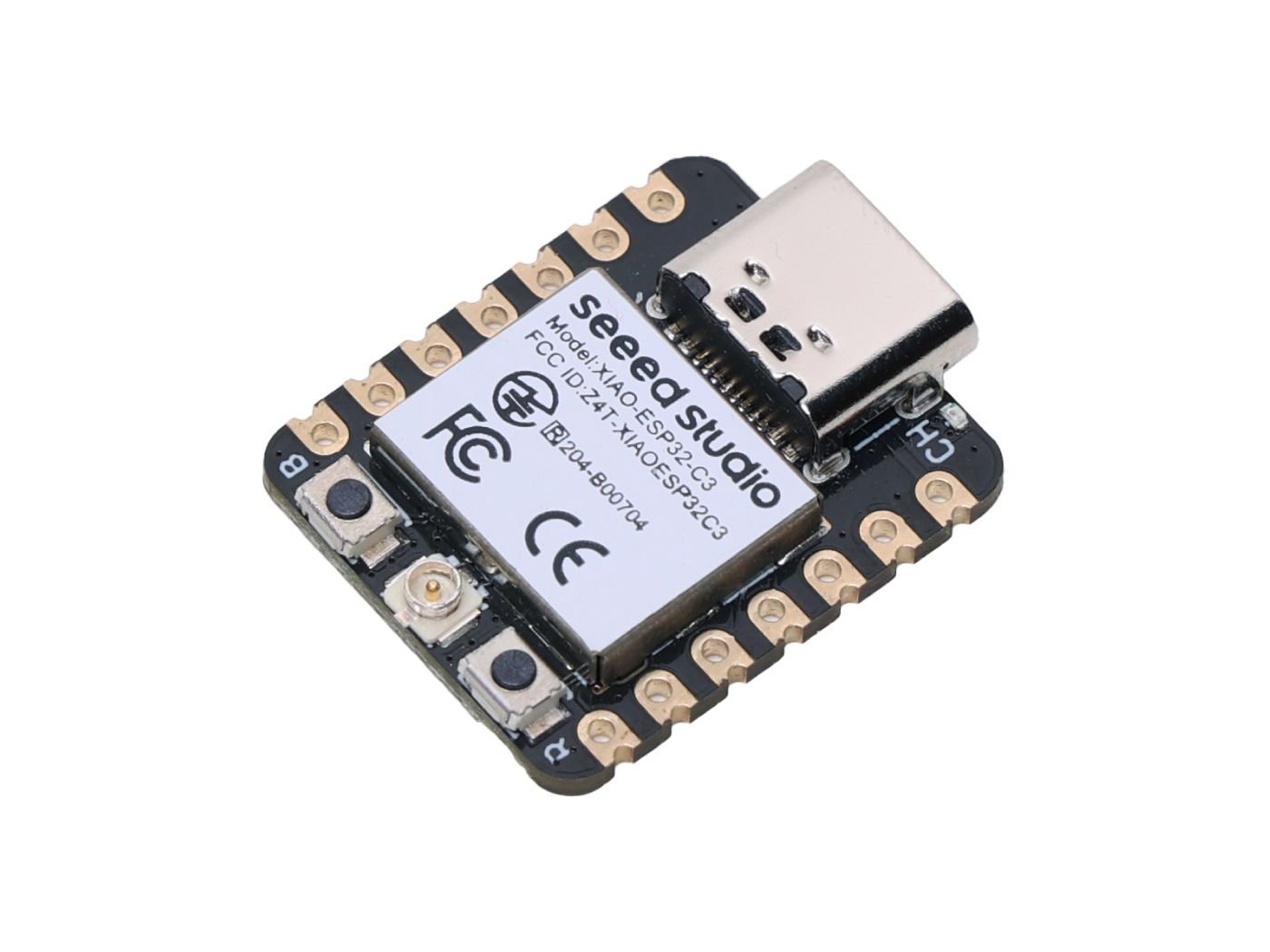
XIAO ESP32-C3
A tiny ESP32-C3 board with Wi-Fi, Bluetooth LE, USB-C and battery charging support, making it a great option for compact IoT and ESPHome projects.
Wiring the ESP32-C3 to the E-Paper Display
The e-paper display connects to the ESP32-C3 using SPI.
Most small SPI e-paper displays use the same basic pins:
| E-Paper Pin | Purpose |
|---|---|
| VCC | Power |
| GND | Ground |
| DIN / MOSI | SPI data |
| CLK / SCK | SPI clock |
| CS | Chip select |
| DC | Data / command |
| RST | Reset |
| BUSY | Busy signal |
For my setup, I used this pin mapping:
| XIAO ESP32-C3 Pin | GPIO | E-Paper Pin |
|---|---|---|
| D3 | GPIO5 | CS |
| D2 | GPIO4 | DC |
| D1 | GPIO3 | RST |
| D7 | GPIO20 | BUSY |
| D8 | GPIO8 | CLK |
| D10 | GPIO10 | DIN |
Your pins may be different depending on the board and how you wire it.
The important part is that the pin definitions in your code match the physical wiring.
For example, if your code says EPD_CS = 5, then the CS pin on the display needs to be connected to GPIO5 on the ESP32-C3.
If the display does not refresh, shows random pixels, or does nothing at all, the first things I would check are:
- SPI wiring
- CS pin
- DC pin
- RST pin
- BUSY pin
- display power
- selected display driver in the code
Step 1: Start With a Basic Text Test
Before adding Wi-Fi, MQTT, Home Assistant, or sensor data, I would start with the most basic test possible.
Just get text on the screen.
This is not exciting, but it saves a lot of troubleshooting later.
If the display cannot show basic text, there is no point trying to debug MQTT yet.
For my first test, I displayed a few simple lines:
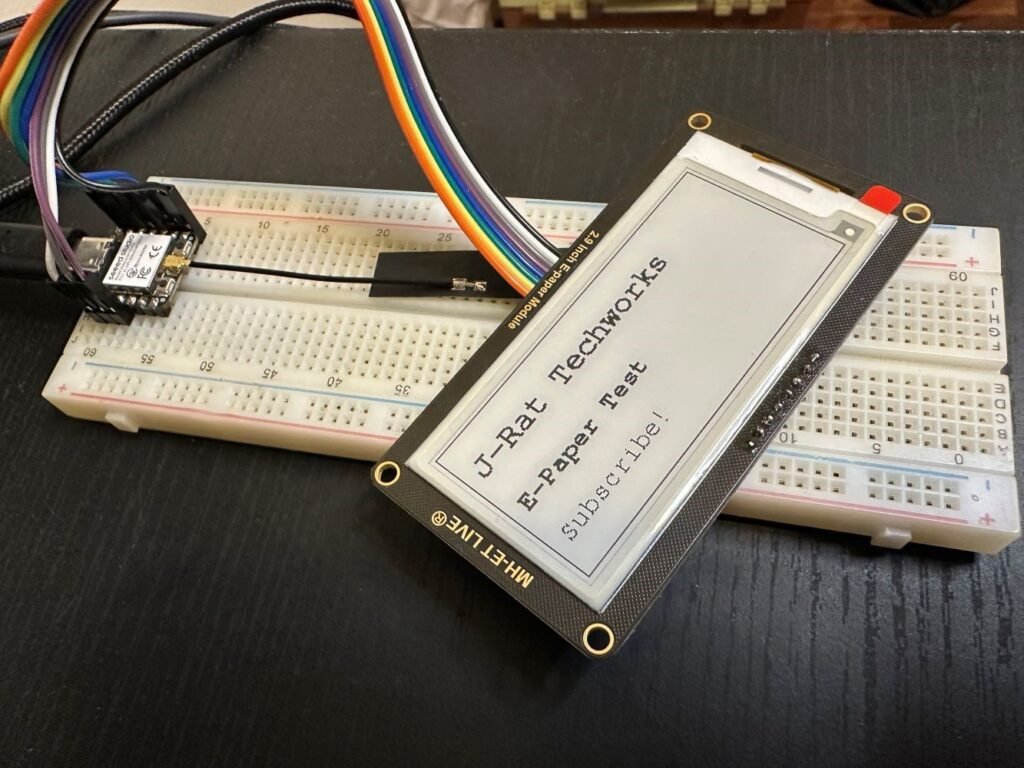
That confirms a few important things:
- the ESP32-C3 is running the sketch
- the display is powered correctly
- the SPI wiring is working
- the selected display driver is close enough
- the screen can refresh properly
Once this basic test works, you have a known-good starting point.
#include <Arduino.h>
#include <SPI.h>

#include <GxEPD2_BW.h>
#include <Fonts/FreeMonoBold12pt7b.h>
#include <Fonts/FreeMonoBold9pt7b.h>
#include <Fonts/FreeMono9pt7b.h>

#include <epd/GxEPD2_290_BS.h>

// =====================
// E-paper pin mapping
// =====================
// XIAO ESP32-C3 -> E-paper
// D3 / GPIO5   -> CS
// D2 / GPIO4   -> DC
// D1 / GPIO3   -> RST
// D7 / GPIO20  -> BUSY
// D8 / GPIO8   -> CLK
// D10 / GPIO10 -> DIN

static const uint8_t EPD_CS   = 5;
static const uint8_t EPD_DC   = 4;
static const uint8_t EPD_RST  = 3;
static const uint8_t EPD_BUSY = 20;

static const uint8_t SPI_SCK  = 8;
static const uint8_t SPI_MOSI = 10;

// Create the display object using the selected driver and pin mapping
GxEPD2_BW<GxEPD2_290_BS, GxEPD2_290_BS::HEIGHT> display(
  GxEPD2_290_BS(EPD_CS, EPD_DC, EPD_RST, EPD_BUSY)
);

void setup() {
  Serial.begin(115200);
  delay(3000);

  Serial.println("Starting e-paper text test...");

  // Start SPI using the custom XIAO ESP32-C3 pin mapping
  SPI.begin(SPI_SCK, -1, SPI_MOSI, EPD_CS);

  // Initialise the display
  display.init(115200, true, 10, false);

  // Set the display to landscape mode
  display.setRotation(1); // landscape: 296 x 128

  // Use the full display area for this test
  display.setFullWindow();

  // Start the e-paper drawing process
  display.firstPage();

  do {
    // Clear the display before drawing the new content
    display.fillScreen(GxEPD_WHITE);
    display.setTextColor(GxEPD_BLACK);

    // Draw a simple border around the screen
    display.drawRect(0, 0, display.width(), display.height(), GxEPD_BLACK);

    // Main title
    display.setFont(&FreeMonoBold12pt7b);
    display.setCursor(10, 35);
    display.print("J-Rat Techworks");

    // Subtitle
    display.setFont(&FreeMonoBold9pt7b);
    display.setCursor(10, 72);
    display.print("E-Paper Test");

    // Small footer text
    display.setFont(&FreeMono9pt7b);
    display.setCursor(10, 105);
    display.print("Subscribe!");

  } while (display.nextPage());

  // Put the display into low-power mode after the update
  display.hibernate();

  Serial.println("Display update complete.");
}

void loop() {
  // Nothing needed here. The display only updates once in setup().
}Understanding E-Paper Refresh Behaviour
One thing that can be confusing at first is how e-paper displays refresh.
They do not behave like normal screens.
When the screen updates, you may see it flash black and white before the final image appears. This is normal for many e-paper displays.
Some displays also support partial refresh, where only part of the screen updates. That can be useful later, but I would not start there.
For a first project, a full refresh is fine.
Especially if the display is only updating every minute or every few minutes.
For this project, I do not need the screen to update every second. The air quality data changes slowly, and refreshing too often just makes the display flash more than necessary.
Step 2: Display MQTT Data on the E-Paper Screen
Once the basic text test is working, the next step is to show live data.
In my case, I already have an air quality sensor publishing data over MQTT.
So instead of wiring the display directly to the sensor, I’m using this flow:
Air quality sensor
       ↓
MQTT broker
       ↓
ESP32-C3 with e-paper display
The ESP32-C3 is not pulling data directly from the air quality sensor.
It connects to Wi-Fi, subscribes to the MQTT topic, and listens for new messages.
When the air quality sensor publishes a new reading, the ESP32-C3 receives that message and stores the latest values.
Then, on a timer, the e-paper display refreshes and shows the latest saved readings.
This makes the display more flexible because it can sit somewhere else in the house. It only needs Wi-Fi and access to the MQTT broker.
Example MQTT Payload
My air quality sensor publishes a JSON payload that looks something like this:
{
  "temperature": 22.8,
  "humidity": 46,
  "co2": 720,
  "pm25": 4.2,
  "air_score": 92
}The ESP32-C3 subscribes to that MQTT topic, reads the values, and formats them for the display.
For example:
Air QualityTemp:   22.8 C
Hum:    46 %
CO2:    720 ppm
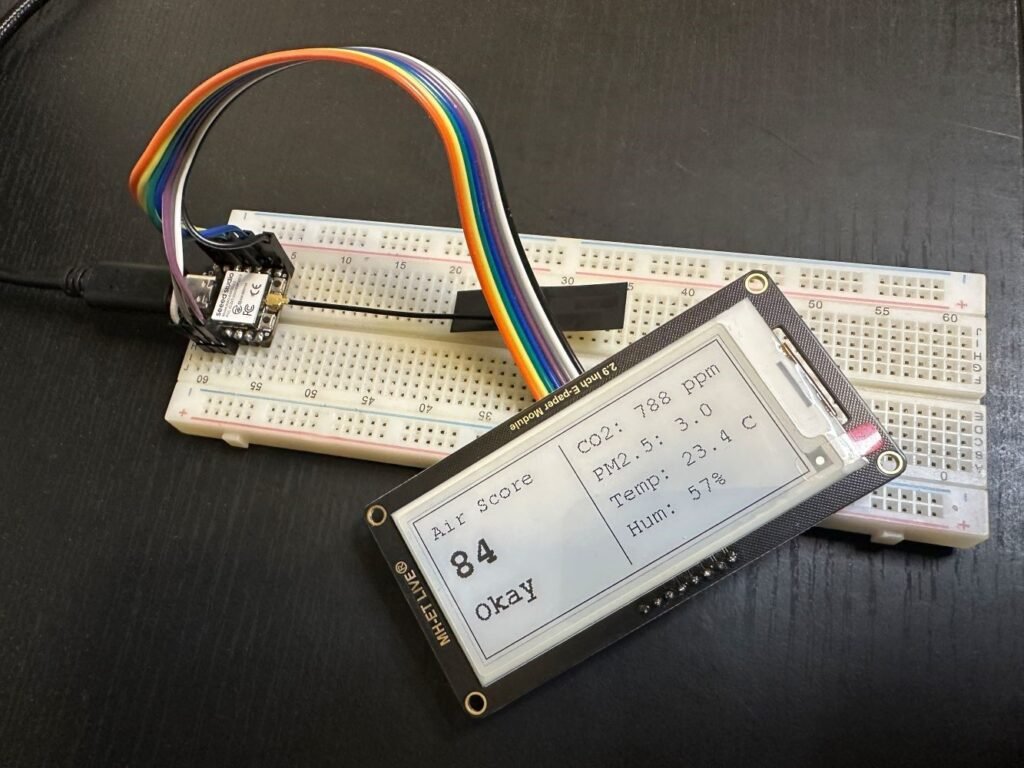
PM2.5: 4.2 ug/m3Score: 92This is a good fit for e-paper because the data is useful at a glance, but it does not need to be constantly animated.
Choosing What to Show on the Display
Small e-paper displays do not have much room.
It is tempting to show every sensor value available, but that can make the screen messy very quickly.
For this project, I kept the display focused on the values I actually wanted to check at a glance:
- temperature
- humidity
- CO2
- PM2.5
- air quality score
That gives me the main information without cramming the screen full of tiny text.
For a small dashboard, less is usually better.
You can always add more later once the basic layout is working.
How the Code Works
The code has three main jobs.
First, it connects the ESP32-C3 to Wi-Fi.
Second, it connects to the MQTT broker and subscribes to the air quality topic.
Third, it updates the e-paper display with the latest readings.
One important detail is that receiving MQTT data and refreshing the display are two separate jobs.
The ESP32-C3 can receive MQTT messages whenever they arrive, but the e-paper display does not need to refresh every time a new message is received.
For my setup, the ESP32 stores the latest received values in memory. Then, every five minutes, it redraws the e-paper screen using the most recent data.
That keeps the display reasonably up to date without making it flash constantly.
#include <Arduino.h>
#include <WiFi.h>
#include <SPI.h>
#include <PubSubClient.h>
#include <ArduinoJson.h>

#include <GxEPD2_BW.h>
#include <Fonts/FreeMonoBold18pt7b.h>
#include <Fonts/FreeMonoBold12pt7b.h>
#include <Fonts/FreeMono9pt7b.h>

#include <epd/GxEPD2_290_BS.h>

// =====================
// USER CONFIG
// =====================
// Update these to match your own Wi-Fi and MQTT setup.

const char* WIFI_SSID     = "YOUR_WIFI_NAME";
const char* WIFI_PASSWORD = "YOUR_WIFI_PASSWORD";

const char* MQTT_HOST     = "192.168.0.11";
const uint16_t MQTT_PORT  = 1883;
const char* MQTT_USER     = "YOUR_MQTT_USERNAME";
const char* MQTT_PASS     = "YOUR_MQTT_PASSWORD";

// MQTT topic published by the air quality sensor
const char* AQ_STATE_TOPIC = "aq_sensor/aq_sensor_1/state";

// =====================
// E-paper pin mapping
// =====================
// XIAO ESP32-C3 -> E-paper
// D3 / GPIO5   -> CS
// D2 / GPIO4   -> DC
// D1 / GPIO3   -> RST
// GPIO20       -> BUSY
// D8 / GPIO8   -> CLK
// D10 / GPIO10 -> DIN

static const uint8_t EPD_CS   = 5;
static const uint8_t EPD_DC   = 4;
static const uint8_t EPD_RST  = 3;
static const uint8_t EPD_BUSY = 20;

static const uint8_t SPI_SCK  = 8;
static const uint8_t SPI_MOSI = 10;

// Create the e-paper display object
GxEPD2_BW<GxEPD2_290_BS, GxEPD2_290_BS::HEIGHT> display(
  GxEPD2_290_BS(EPD_CS, EPD_DC, EPD_RST, EPD_BUSY)
);

// Wi-Fi and MQTT clients
WiFiClient wifiClient;
PubSubClient mqtt(wifiClient);

// =====================
// Display data
// =====================
// These values are updated whenever a new MQTT message is received.

int airScore = -1;
int co2 = -1;
float pm25 = -1.0;
float temperature = NAN;
float humidity = NAN;

bool needsDisplayUpdate = false;
bool hasDisplayedFirstData = false;

// Limit full e-paper refreshes to once every 5 minutes
unsigned long lastDisplayUpdate = 0;
const unsigned long DISPLAY_UPDATE_INTERVAL_MS = 5UL * 60UL * 1000UL;

// =====================
// Helpers
// =====================

// Convert the air score number into a simple text label
String scoreLabel(int score) {
  if (score < 0) return "Waiting";
  if (score >= 90) return "Excellent";
  if (score >= 85) return "Good";
  if (score >= 70) return "Okay";
  if (score >= 55) return "Poor";
  if (score >= 35) return "Very Poor";
  return "Bad";
}

// Prepare the display before each screen update
void initDisplayForUpdate() {
  display.init(115200, true, 100, false);
  display.setRotation(1); // landscape: 296 x 128
  display.setFullWindow();
}

// Show this screen while waiting for the first MQTT message
void drawWaitingScreen() {
  Serial.println("Drawing waiting screen...");

  initDisplayForUpdate();

  display.firstPage();
  do {
    display.fillScreen(GxEPD_WHITE);
    display.drawRect(0, 0, display.width(), display.height(), GxEPD_BLACK);

    display.setTextColor(GxEPD_BLACK);

    display.setFont(&FreeMonoBold12pt7b);
    display.setCursor(10, 35);
    display.print("AQ Display");

    display.setFont(&FreeMono9pt7b);
    display.setCursor(10, 70);
    display.print("Waiting for MQTT data");

    display.setCursor(10, 100);
    display.print(AQ_STATE_TOPIC);

  } while (display.nextPage());

  display.powerOff();

  Serial.println("Waiting screen complete.");
}

// Draw the main air quality screen using the latest MQTT values
void drawAirQualityScreen() {
  Serial.println("Updating e-paper display...");

  initDisplayForUpdate();

  display.firstPage();
  do {
    display.fillScreen(GxEPD_WHITE);
    display.setTextColor(GxEPD_BLACK);

    // Border and centre divider
    display.drawRect(0, 0, display.width(), display.height(), GxEPD_BLACK);
    display.drawLine(140, 8, 140, 120, GxEPD_BLACK);

    // =====================
    // LEFT SIDE: score and rating
    // =====================

    display.setFont(&FreeMono9pt7b);
    display.setCursor(10, 22);
    display.print("Air Score");

    display.setFont(&FreeMonoBold18pt7b);
    display.setCursor(10, 62);

    if (airScore >= 0) {
      display.print(airScore);
    } else {
      display.print("--");
    }

    display.setFont(&FreeMonoBold12pt7b);
    display.setCursor(10, 100);
    display.print(scoreLabel(airScore));

    // =====================
    // RIGHT SIDE: sensor values
    // =====================

    display.setFont(&FreeMono9pt7b);

    display.setCursor(152, 24);
    if (co2 >= 0) {
      display.printf("CO2: %d ppm", co2);
    } else {
      display.print("CO2: -- ppm");
    }

    display.setCursor(152, 50);
    if (pm25 >= 0) {
      display.printf("PM2.5: %.1f", pm25);
    } else {
      display.print("PM2.5: --");
    }

    display.setCursor(152, 76);
    if (!isnan(temperature)) {
      display.printf("Temp: %.1f C", temperature);
    } else {
      display.print("Temp: --.- C");
    }

    display.setCursor(152, 102);
    if (!isnan(humidity)) {
      display.printf("Hum: %.0f%%", humidity);
    } else {
      display.print("Hum: --%");
    }

  } while (display.nextPage());

  display.powerOff();

  // Reset the update flags after the screen refresh is complete
  lastDisplayUpdate = millis();
  needsDisplayUpdate = false;
  hasDisplayedFirstData = true;

  Serial.println("Display update complete.");
}

// This function runs whenever a message arrives on the subscribed MQTT topic
void mqttCallback(char* topic, byte* payload, unsigned int length) {
  Serial.print("MQTT message on ");
  Serial.println(topic);

  String message;
  message.reserve(length + 1);

  for (unsigned int i = 0; i < length; i++) {
    message += (char)payload[i];
  }

  Serial.println(message);

  // Parse the incoming JSON payload
  StaticJsonDocument<768> doc;
  DeserializationError error = deserializeJson(doc, message);

  if (error) {
    Serial.print("JSON parse failed: ");
    Serial.println(error.c_str());
    return;
  }

  // Update each value if it exists in the MQTT payload
  if (doc.containsKey("air_score")) {
    airScore = doc["air_score"].as<int>();
  }

  if (doc.containsKey("co2")) {
    co2 = doc["co2"].as<int>();
  }

  if (doc.containsKey("pm2_5")) {
    pm25 = doc["pm2_5"].as<float>();
  }

  if (doc.containsKey("temperature")) {
    temperature = doc["temperature"].as<float>();
  }

  if (doc.containsKey("humidity")) {
    humidity = doc["humidity"].as<float>();
  }

  // Tell the main loop that new data is ready to be displayed
  needsDisplayUpdate = true;

  Serial.print("Air Score: ");
  Serial.println(airScore);

  Serial.print("Rating: ");
  Serial.println(scoreLabel(airScore));

  Serial.print("CO2: ");
  Serial.println(co2);

  Serial.print("PM2.5: ");
  Serial.println(pm25);

  Serial.print("Temp: ");
  Serial.println(temperature);

  Serial.print("Humidity: ");
  Serial.println(humidity);
}

// Connect the ESP32-C3 to Wi-Fi
void connectWiFi() {
  Serial.print("Connecting to Wi-Fi: ");
  Serial.println(WIFI_SSID);

  WiFi.mode(WIFI_STA);
  WiFi.begin(WIFI_SSID, WIFI_PASSWORD);

  while (WiFi.status() != WL_CONNECTED) {
    delay(500);
    Serial.print(".");
  }

  Serial.println();
  Serial.print("Wi-Fi connected. IP: ");
  Serial.println(WiFi.localIP());
}

// Connect to the MQTT broker and subscribe to the air quality topic
void connectMQTT() {
  while (!mqtt.connected()) {
    Serial.print("Connecting to MQTT... ");

    String clientId = "xiao-epaper-airquality-";
    clientId += String((uint32_t)ESP.getEfuseMac(), HEX);

    bool ok;

    if (MQTT_USER && MQTT_USER[0]) {
      ok = mqtt.connect(clientId.c_str(), MQTT_USER, MQTT_PASS);
    } else {
      ok = mqtt.connect(clientId.c_str());
    }

    if (ok) {
      Serial.println("connected");

      mqtt.subscribe(AQ_STATE_TOPIC);

      Serial.print("Subscribed to: ");
      Serial.println(AQ_STATE_TOPIC);
    } else {
      Serial.print("failed, rc=");
      Serial.print(mqtt.state());
      Serial.println(". Retrying in 5 seconds...");
      delay(5000);
    }
  }
}

void setup() {
  Serial.begin(115200);
  delay(3000);

  Serial.println();
  Serial.println("Starting XIAO e-paper air quality display...");

  // Start SPI for the e-paper display
  SPI.begin(SPI_SCK, -1, SPI_MOSI, EPD_CS);

  // Show a waiting screen before MQTT data arrives
  initDisplayForUpdate();
  drawWaitingScreen();

  // Connect to Wi-Fi and MQTT
  connectWiFi();

  mqtt.setServer(MQTT_HOST, MQTT_PORT);
  mqtt.setCallback(mqttCallback);
  mqtt.setBufferSize(1024);

  connectMQTT();
}

void loop() {
  // Reconnect Wi-Fi if it drops out
  if (WiFi.status() != WL_CONNECTED) {
    connectWiFi();
  }

  // Reconnect MQTT if needed
  if (!mqtt.connected()) {
    connectMQTT();
  }

  // Keep the MQTT client running
  mqtt.loop();

  // The first valid MQTT message updates the display immediately.
  // After that, the display only refreshes when new data has arrived
  // and at least 5 minutes have passed since the last e-paper update.
  if (needsDisplayUpdate) {
    if (!hasDisplayedFirstData || millis() - lastDisplayUpdate >= DISPLAY_UPDATE_INTERVAL_MS) {
      drawAirQualityScreen();
    }
  }
}Step 3: Adding a Logo to the E-Paper Display
The next test is adding a logo.
This works differently to displaying text.
With text, the sketch can use a font, set the cursor position, and print characters directly to the display.
Images need to be handled another way.
The ESP32 cannot just display a normal PNG or JPG file from inside the Arduino sketch. The image needs to be converted into bitmap data first. I used this website to convert my image.
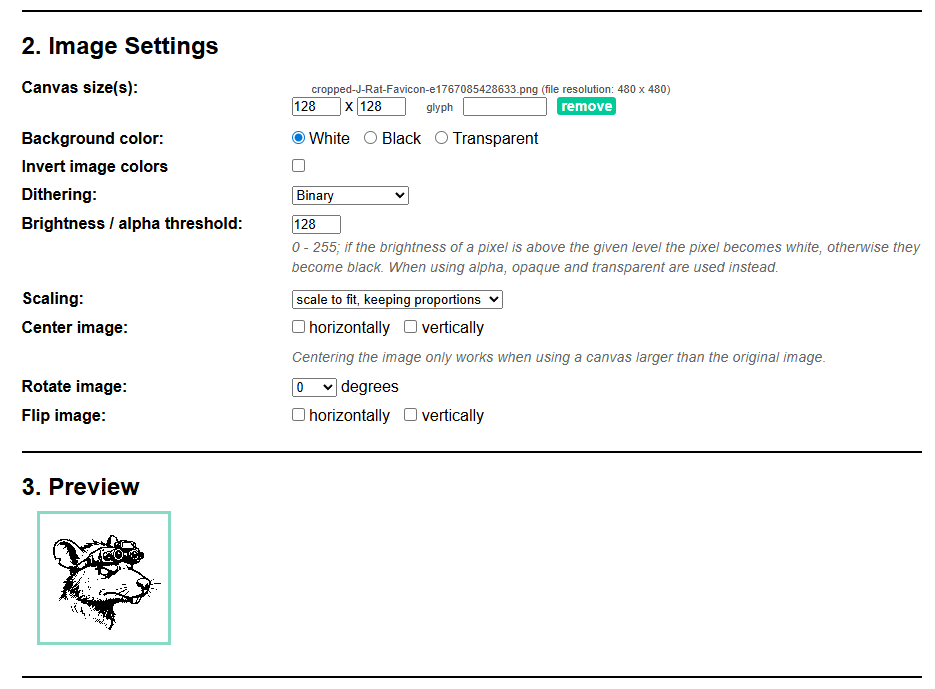
That bitmap data is then pasted into the sketch as C++ code.
For this project, I used my J-Rat Techworks logo.
The original image was larger than I needed, so I resized it before converting it. In my case, I converted it to a 128 x 128 pixel black-and-white bitmap.
This part can take a bit of trial and error.
A logo that looks good in full colour does not always convert nicely to a black-and-white e-paper display.
For best results, use an image with:
- simple shapes
- strong contrast
- clean outlines
- not too much fine detail
- a size that matches your display layout
Once the bitmap data is generated, it can be copied into the Arduino sketch and drawn on the display.
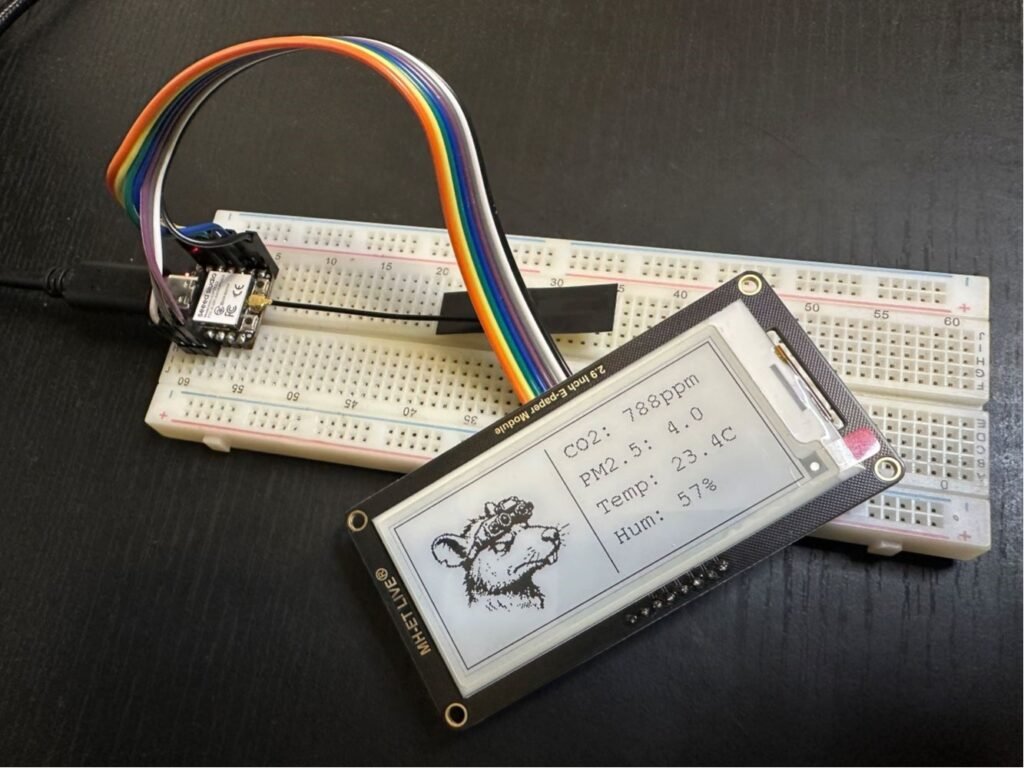
For my layout, I placed the logo on the left side of the display and kept the air quality readings on the right.
That gave me a simple split layout:
The main thing to remember is that the image is no longer being treated as a normal image file.
It becomes bitmap data inside the sketch.
If the logo looks wrong, check:
- bitmap width
- bitmap height
- image threshold settings
- transparency settings
- whether the image is inverted
- whether the code uses the correct bitmap dimensions
#include <Arduino.h>
#include <WiFi.h>
#include <SPI.h>
#include <PubSubClient.h>
#include <ArduinoJson.h>

#include <GxEPD2_BW.h>
#include <Fonts/FreeMonoBold18pt7b.h>
#include <Fonts/FreeMonoBold12pt7b.h>
#include <Fonts/FreeMono9pt7b.h>

#include <epd/GxEPD2_290_BS.h>

// =====================
// Bitmap image
// =====================
// This is a converted 1-bit bitmap image used for the logo.
// It was generated from an image file and pasted into the code.
//
// This section will be very long.
// To use a different image, replace this bitmap array with another
// converted 1-bit bitmap image.

// 'J-Rat-Logo', 128x128px
const unsigned char myBitmap [] PROGMEM = {
  // Paste the full converted bitmap data here.
  //
  // Example format:
  // 0xff, 0xff, 0xff, 0xff,
  // 0xff, 0xff, 0xff, 0xff,
  //
  // The full bitmap array has been shortened here to keep the blog code readable.
};

// =====================
// USER CONFIG
// =====================
// Update these values to match the Wi-Fi and MQTT setup being used.

const char* WIFI_SSID     = "YOUR_WIFI_NAME";
const char* WIFI_PASSWORD = "YOUR_WIFI_PASSWORD";

const char* MQTT_HOST     = "192.168.0.11";
const uint16_t MQTT_PORT  = 1883;
const char* MQTT_USER     = "YOUR_MQTT_USERNAME";
const char* MQTT_PASS     = "YOUR_MQTT_PASSWORD";

// MQTT topic published by the air quality sensor
const char* AQ_STATE_TOPIC = "aq_sensor/aq_sensor_1/state";

// =====================
// E-paper pin mapping
// =====================
// XIAO ESP32-C3 -> E-paper
// D3 / GPIO5   -> CS
// D2 / GPIO4   -> DC
// D1 / GPIO3   -> RST
// D6 / GPIO21  -> BUSY
// D8 / GPIO8   -> CLK
// D10 / GPIO10 -> DIN

static const uint8_t EPD_CS   = 5;
static const uint8_t EPD_DC   = 4;
static const uint8_t EPD_RST  = 3;
static const uint8_t EPD_BUSY = 21;

static const uint8_t SPI_SCK  = 8;
static const uint8_t SPI_MOSI = 10;

// Create the e-paper display object
GxEPD2_BW<GxEPD2_290_BS, GxEPD2_290_BS::HEIGHT> display(
  GxEPD2_290_BS(EPD_CS, EPD_DC, EPD_RST, EPD_BUSY)
);

// Wi-Fi and MQTT clients
WiFiClient wifiClient;
PubSubClient mqtt(wifiClient);

// =====================
// Display data
// =====================
// These values are updated whenever a new MQTT message is received.

int airScore = -1;
int co2 = -1;
float pm25 = -1.0;
float temperature = NAN;
float humidity = NAN;

bool needsDisplayUpdate = false;
bool hasDisplayedFirstData = false;

// Limit full e-paper refreshes to once every 5 minutes
unsigned long lastDisplayUpdate = 0;
const unsigned long DISPLAY_UPDATE_INTERVAL_MS = 5UL * 60UL * 1000UL;

// =====================
// Helpers
// =====================

// Convert the air score number into a simple text label
String scoreLabel(int score) {
  if (score < 0) return "Waiting";
  if (score >= 90) return "Excellent";
  if (score >= 85) return "Good";
  if (score >= 70) return "Okay";
  if (score >= 55) return "Poor";
  if (score >= 35) return "Very Poor";
  return "Bad";
}

// Show this screen while waiting for the first MQTT message
void drawWaitingScreen() {
  display.setRotation(1);
  display.setFullWindow();

  display.firstPage();
  do {
    display.fillScreen(GxEPD_WHITE);
    display.drawRect(0, 0, display.width(), display.height(), GxEPD_BLACK);

    display.setTextColor(GxEPD_BLACK);

    display.setFont(&FreeMonoBold12pt7b);
    display.setCursor(10, 35);
    display.print("AQ Display");

    display.setFont(&FreeMono9pt7b);
    display.setCursor(10, 70);
    display.print("Waiting for MQTT data");

    display.setCursor(10, 100);
    display.print(AQ_STATE_TOPIC);

  } while (display.nextPage());

  display.hibernate();
}

// Draw the main display layout using the latest MQTT values
void drawAirQualityScreen() {
  Serial.println("Updating e-paper display...");

  display.setRotation(1); // landscape: 296 x 128
  display.setFullWindow();

  display.firstPage();
  do {
    display.fillScreen(GxEPD_WHITE);
    display.setTextColor(GxEPD_BLACK);

    // Border and centre divider
    display.drawRect(0, 0, display.width(), display.height(), GxEPD_BLACK);
    display.drawLine(140, 8, 140, 120, GxEPD_BLACK);

    // =====================
    // LEFT SIDE: logo bitmap
    // =====================
    // Draw the 128 x 128 logo on the left side of the screen.
    // If the image appears inverted, use drawBitmap() instead of drawInvertedBitmap().
    display.drawInvertedBitmap(6, 0, myBitmap, 128, 128, GxEPD_BLACK);

    // Alternative option if the image is inverted:
    // display.drawBitmap(6, 0, myBitmap, 128, 128, GxEPD_BLACK);

    // =====================
    // RIGHT SIDE: sensor values
    // =====================
    display.setFont(&FreeMono9pt7b);

    display.setCursor(152, 24);
    if (co2 >= 0) {
      display.printf("CO2: %dppm", co2);
    } else {
      display.print("CO2: --ppm");
    }

    display.setCursor(152, 50);
    if (pm25 >= 0) {
      display.printf("PM2.5: %.1f", pm25);
    } else {
      display.print("PM2.5: --");
    }

    display.setCursor(152, 76);
    if (!isnan(temperature)) {
      display.printf("Temp: %.1fC", temperature);
    } else {
      display.print("Temp: --.-C");
    }

    display.setCursor(152, 102);
    if (!isnan(humidity)) {
      display.printf("Hum: %.0f%%", humidity);
    } else {
      display.print("Hum: --%");
    }

  } while (display.nextPage());

  display.hibernate();

  // Reset the update flags after the screen refresh is complete
  lastDisplayUpdate = millis();
  needsDisplayUpdate = false;
  hasDisplayedFirstData = true;

  Serial.println("Display update complete.");
}

// This function runs whenever a message arrives on the subscribed MQTT topic
void mqttCallback(char* topic, byte* payload, unsigned int length) {
  Serial.print("MQTT message on ");
  Serial.println(topic);

  String message;
  message.reserve(length + 1);

  for (unsigned int i = 0; i < length; i++) {
    message += (char)payload[i];
  }

  Serial.println(message);

  // Parse the incoming JSON payload
  StaticJsonDocument<768> doc;
  DeserializationError error = deserializeJson(doc, message);

  if (error) {
    Serial.print("JSON parse failed: ");
    Serial.println(error.c_str());
    return;
  }

  // Update each value if it exists in the MQTT payload
  if (doc.containsKey("air_score")) {
    airScore = doc["air_score"].as<int>();
  }

  if (doc.containsKey("co2")) {
    co2 = doc["co2"].as<int>();
  }

  if (doc.containsKey("pm2_5")) {
    pm25 = doc["pm2_5"].as<float>();
  }

  if (doc.containsKey("temperature")) {
    temperature = doc["temperature"].as<float>();
  }

  if (doc.containsKey("humidity")) {
    humidity = doc["humidity"].as<float>();
  }

  // Tell the main loop that new data is ready to be displayed
  needsDisplayUpdate = true;

  Serial.print("Air Score: ");
  Serial.println(airScore);
  Serial.print("Rating: ");
  Serial.println(scoreLabel(airScore));
  Serial.print("CO2: ");
  Serial.println(co2);
  Serial.print("PM2.5: ");
  Serial.println(pm25);
  Serial.print("Temp: ");
  Serial.println(temperature);
  Serial.print("Humidity: ");
  Serial.println(humidity);
}

// Connect the ESP32-C3 to Wi-Fi
void connectWiFi() {
  Serial.print("Connecting to Wi-Fi: ");
  Serial.println(WIFI_SSID);

  WiFi.mode(WIFI_STA);
  WiFi.begin(WIFI_SSID, WIFI_PASSWORD);

  while (WiFi.status() != WL_CONNECTED) {
    delay(500);
    Serial.print(".");
  }

  Serial.println();
  Serial.print("Wi-Fi connected. IP: ");
  Serial.println(WiFi.localIP());
}

// Connect to the MQTT broker and subscribe to the air quality topic
void connectMQTT() {
  while (!mqtt.connected()) {
    Serial.print("Connecting to MQTT... ");

    String clientId = "xiao-epaper-airquality-";
    clientId += String((uint32_t)ESP.getEfuseMac(), HEX);

    bool ok;

    if (MQTT_USER && MQTT_USER[0]) {
      ok = mqtt.connect(clientId.c_str(), MQTT_USER, MQTT_PASS);
    } else {
      ok = mqtt.connect(clientId.c_str());
    }

    if (ok) {
      Serial.println("connected");

      mqtt.subscribe(AQ_STATE_TOPIC);

      Serial.print("Subscribed to: ");
      Serial.println(AQ_STATE_TOPIC);
    } else {
      Serial.print("failed, rc=");
      Serial.print(mqtt.state());
      Serial.println(". Retrying in 5 seconds...");
      delay(5000);
    }
  }
}

void setup() {
  Serial.begin(115200);
  delay(3000);

  Serial.println();
  Serial.println("Starting XIAO e-paper air quality display...");

  // Start SPI for the e-paper display
  SPI.begin(SPI_SCK, -1, SPI_MOSI, EPD_CS);

  // Initialise the display once at startup
  display.init(115200, true, 10, false);
  display.setRotation(1);

  // Show a waiting screen before MQTT data arrives
  drawWaitingScreen();

  // Connect to Wi-Fi and MQTT
  connectWiFi();

  mqtt.setServer(MQTT_HOST, MQTT_PORT);
  mqtt.setCallback(mqttCallback);
  mqtt.setBufferSize(1024);

  connectMQTT();
}

void loop() {
  // Reconnect Wi-Fi if it drops out
  if (WiFi.status() != WL_CONNECTED) {
    connectWiFi();
  }

  // Reconnect MQTT if needed
  if (!mqtt.connected()) {
    connectMQTT();
  }

  // Keep the MQTT client running
  mqtt.loop();

  // The first valid MQTT message updates the display immediately.
  // After that, the display only refreshes when new data has arrived
  // and at least 5 minutes have passed since the last e-paper update.
  if (needsDisplayUpdate) {
    if (!hasDisplayedFirstData || millis() - lastDisplayUpdate >= DISPLAY_UPDATE_INTERVAL_MS) {
      drawAirQualityScreen();
    }
  }
}This is an example of what a bit map image would look like:
const unsigned char myBitmap [] PROGMEM = {
	0xff, 0xff, 0xff, 0xff, 0xff, 0xff, 0xff, 0xff, 0xff, 0xff, 0xff, 0xff, 0xff, 0xff, 0xff, 0xff,
	0xff, 0xff, 0xff, 0xff, 0xff, 0xff, 0xff, 0xff, 0xff, 0xff, 0xff, 0xff, 0xff, 0xff, 0xff, 0xff,
	0xff, 0xff, 0xff, 0xff, 0xff, 0xff, 0xff, 0xff, 0xff, 0xff, 0xff, 0xff, 0xff, 0xff, 0xff, 0xff,
	0xff, 0xff, 0xff, 0xff, 0xff, 0xff, 0xff, 0xff, 0xff, 0xff, 0xff, 0xff, 0xff, 0xff, 0xff, 0xff,
	0xff, 0xff, 0xff, 0xff, 0xff, 0xff, 0xff, 0xff, 0xff, 0xff, 0xff, 0xff, 0xff, 0xff, 0xff, 0xff,
	0xff, 0xff, 0xff, 0xff, 0xff, 0xff, 0xff, 0xff, 0xff, 0xff, 0xff, 0xff, 0xff, 0xff, 0xff, 0xff,
	0xff, 0xff, 0xff, 0xff, 0xff, 0xff, 0xff, 0xff, 0xff, 0xff, 0xff, 0xff, 0xff, 0xff, 0xff, 0xff,
	0xff, 0xff, 0xff, 0xff, 0xff, 0xff, 0xff, 0xff, 0xff, 0xff, 0xff, 0xff, 0xff, 0xff, 0xff, 0xff,
	0xff, 0xff, 0xff, 0xff, 0xff, 0xff, 0xff, 0xff, 0xff, 0xff, 0xff, 0xff, 0xff, 0xff, 0xff, 0xff,
	0xff, 0xff, 0xff, 0xff, 0xff, 0xff, 0xff, 0xff, 0xff, 0xff, 0xff, 0xff, 0xff, 0xff, 0xff, 0xff,
	0xff, 0xff, 0xff, 0xff, 0xff, 0xff, 0xff, 0xff, 0xff, 0xff, 0xff, 0xff, 0xff, 0xff, 0xff, 0xff,
	0xff, 0xff, 0xff, 0xff, 0xff, 0xff, 0xff, 0xff, 0xff, 0xff, 0xff, 0xff, 0xff, 0xff, 0xff, 0xff,
	0xff, 0xff, 0xff, 0xff, 0xff, 0xff, 0xff, 0xff, 0xff, 0xff, 0xff, 0xff, 0xff, 0xff, 0xff, 0xff,
	0xff, 0xff, 0xff, 0xff, 0xff, 0xff, 0xff, 0xff, 0xff, 0xff, 0xff, 0xff, 0xff, 0xff, 0xff, 0xff,
	0xff, 0xff, 0xff, 0xff, 0xff, 0xff, 0xff, 0xff, 0xff, 0xff, 0xff, 0xff, 0xff, 0xff, 0xff, 0xff,
	0xff, 0xff, 0xff, 0xff, 0xff, 0xff, 0xff, 0xff, 0xff, 0xff, 0xff, 0xff, 0xff, 0xff, 0xff, 0xff,
	0xff, 0xff, 0xff, 0xff, 0xff, 0xff, 0xff, 0xff, 0xff, 0xff, 0xff, 0xff, 0xff, 0xff, 0xff, 0xff,
	0xff, 0xff, 0xff, 0xff, 0xff, 0xff, 0xff, 0xff, 0xff, 0xff, 0xff, 0xff, 0xff, 0xff, 0xff, 0xff,
	0xff, 0xff, 0xff, 0xff, 0xff, 0xff, 0xff, 0xff, 0xff, 0xff, 0xff, 0xff, 0xff, 0xff, 0xff, 0xff,
	0xff, 0xff, 0xff, 0xff, 0xff, 0xff, 0xff, 0xff, 0xff, 0xff, 0xff, 0xff, 0xff, 0xff, 0xff, 0xff,
	0xff, 0xff, 0xff, 0xff, 0xff, 0xff, 0xff, 0xff, 0xff, 0xff, 0xff, 0xff, 0xff, 0xff, 0xff, 0xff,
	0xff, 0xff, 0xff, 0xff, 0xff, 0xff, 0xff, 0xff, 0xfc, 0x3f, 0xff, 0xff, 0xff, 0xff, 0xff, 0xff,
	0xff, 0xff, 0xff, 0xff, 0xff, 0xff, 0xff, 0xff, 0xfc, 0x9f, 0xff, 0xff, 0xff, 0xff, 0xff, 0xff,
	0xff, 0xff, 0xff, 0xff, 0xff, 0xff, 0xff, 0xff, 0xf9, 0xe7, 0xff, 0xff, 0xff, 0xff, 0xff, 0xff,
	0xff, 0xff, 0xff, 0xff, 0xff, 0xff, 0xff, 0xff, 0xf1, 0xf7, 0xff, 0xff, 0xff, 0xff, 0xff, 0xff,
	0xff, 0xff, 0xf0, 0x0b, 0xff, 0xff, 0xf7, 0xff, 0xf1, 0xf3, 0xff, 0xff, 0xff, 0xff, 0xff, 0xff,
	0xff, 0xff, 0xc3, 0xe0, 0xff, 0xff, 0xfb, 0xff, 0xe1, 0xf3, 0x01, 0xff, 0xff, 0xff, 0xff, 0xff,
	0xff, 0xff, 0x9e, 0x7c, 0x7f, 0xff, 0xf8, 0x7b, 0xe1, 0xf8, 0x30, 0x07, 0xff, 0xff, 0xff, 0xff,
	0xff, 0xfe, 0x30, 0x0f, 0x1f, 0xff, 0xfc, 0x19, 0xe1, 0xe0, 0x40, 0x19, 0xff, 0xff, 0xff, 0xff,
	0xff, 0xfe, 0x40, 0x03, 0x8f, 0xfc, 0x00, 0x60, 0x41, 0xcc, 0x5f, 0xe8, 0xff, 0xff, 0xff, 0xff,
	0xff, 0xfc, 0xd0, 0x01, 0xe7, 0xff, 0x0c, 0x18, 0x03, 0xc9, 0x5f, 0xe2, 0xff, 0xff, 0xff, 0xff,
	0xff, 0xfc, 0xbf, 0x80, 0xf3, 0xf0, 0x07, 0xfe, 0x41, 0xc0, 0x5f, 0xf2, 0xff, 0xff, 0xff, 0xff,
	0xff, 0xfd, 0xff, 0x80, 0x79, 0xb0, 0x1f, 0xff, 0xe0, 0x40, 0x5f, 0xf8, 0xff, 0xff, 0xff, 0xff,
	0xff, 0xf9, 0xff, 0x20, 0x3c, 0x00, 0x3f, 0xf0, 0x00, 0x00, 0x3f, 0xf8, 0x7f, 0xff, 0xff, 0xff,
	0xff, 0xf9, 0xfe, 0xe0, 0x1e, 0x03, 0xff, 0xc3, 0xff, 0xe0, 0x00, 0x02, 0x1f, 0xff, 0xff, 0xff,
	0xff, 0xf9, 0xff, 0xe0, 0x1f, 0x0f, 0xff, 0x8e, 0xff, 0x87, 0x00, 0x00, 0xdf, 0xff, 0xff, 0xff,
	0xff, 0xf9, 0xff, 0xf0, 0x0f, 0x86, 0xfe, 0x34, 0xfe, 0x58, 0x80, 0x0f, 0x4f, 0xff, 0xff, 0xff,
	0xff, 0xf9, 0xff, 0xe0, 0x0f, 0xd3, 0xf8, 0xf7, 0xe0, 0xd0, 0x40, 0x38, 0x8f, 0xff, 0xff, 0xff,
	0xff, 0xf9, 0xff, 0xe8, 0x0f, 0xed, 0xe1, 0xf7, 0x1c, 0xa2, 0x20, 0x52, 0x41, 0xff, 0xff, 0xff,
	0xff, 0xf9, 0xff, 0xd8, 0x0f, 0xff, 0xc7, 0xe6, 0x52, 0xa3, 0x2e, 0x43, 0x00, 0xff, 0xff, 0xff,
	0xff, 0xf9, 0xff, 0xf8, 0x07, 0xdf, 0x9f, 0xe6, 0xc0, 0xa0, 0x2e, 0x40, 0x00, 0xff, 0xff, 0xff,
	0xff, 0xfd, 0xff, 0xf8, 0x03, 0xdf, 0x87, 0xe6, 0xc0, 0x20, 0x22, 0x10, 0x00, 0xff, 0xff, 0xff,
	0xff, 0xfc, 0xff, 0xfc, 0x03, 0xff, 0x17, 0xc2, 0x00, 0x20, 0x20, 0x10, 0x40, 0xff, 0xff, 0xff,
	0xff, 0xfc, 0xff, 0xfc, 0x01, 0xfe, 0x77, 0xc2, 0x0c, 0x10, 0x40, 0x00, 0x48, 0xff, 0xff, 0xff,
	0xff, 0xfe, 0x07, 0xfc, 0x00, 0xfc, 0x33, 0xca, 0x00, 0x18, 0xc0, 0x05, 0x81, 0xff, 0xff, 0xff,
	0xff, 0xfe, 0xe7, 0xfe, 0x0f, 0xf0, 0x13, 0xe3, 0x00, 0x07, 0x00, 0x00, 0x07, 0xff, 0xff, 0xff,
	0xff, 0xff, 0xe7, 0xff, 0x03, 0xe0, 0x10, 0x93, 0x82, 0x00, 0x00, 0x00, 0x6f, 0xff, 0xff, 0xff,
	0xff, 0xff, 0xef, 0xfd, 0x03, 0x86, 0x10, 0x10, 0xff, 0x80, 0x00, 0x00, 0x0f, 0xff, 0xff, 0xff,
	0xff, 0xff, 0xef, 0xfe, 0x03, 0x3e, 0x10, 0x00, 0x00, 0x00, 0x70, 0x00, 0x1f, 0xff, 0xff, 0xff,
	0xff, 0xff, 0xc7, 0xff, 0x04, 0x7a, 0x00, 0x00, 0x00, 0x01, 0xfe, 0x00, 0x7f, 0xff, 0xff, 0xff,
	0xff, 0xff, 0xe3, 0xff, 0x80, 0xf8, 0x00, 0x00, 0x00, 0x01, 0xff, 0xc3, 0xff, 0xff, 0xff, 0xff,
	0xff, 0xff, 0xf0, 0xff, 0xf3, 0xf8, 0x00, 0x00, 0x02, 0xe7, 0xfd, 0xe7, 0xff, 0xff, 0xff, 0xff,
	0xff, 0xff, 0xfc, 0x38, 0x43, 0xe0, 0x00, 0x81, 0xff, 0xfa, 0xfe, 0xe7, 0xff, 0xff, 0xff, 0xff,
	0xff, 0xff, 0xff, 0x00, 0x01, 0xc1, 0xff, 0x80, 0x7f, 0xfa, 0x7e, 0x07, 0xff, 0xff, 0xff, 0xff,
	0xff, 0xff, 0xff, 0xe0, 0x00, 0x07, 0xfe, 0x00, 0x1f, 0xfa, 0x67, 0x07, 0xff, 0xff, 0xff, 0xff,
	0xff, 0xff, 0xff, 0xfc, 0x00, 0x1f, 0xfc, 0x07, 0x87, 0xf2, 0x7f, 0x03, 0xff, 0xff, 0xff, 0xff,
	0xff, 0xff, 0xff, 0xf8, 0x00, 0x7f, 0xff, 0xc7, 0xe0, 0xe1, 0xff, 0xf0, 0xff, 0xff, 0xff, 0xff,
	0xff, 0xff, 0xff, 0xfc, 0x01, 0xf7, 0xff, 0xc7, 0xf0, 0x03, 0xff, 0xfc, 0x3f, 0xff, 0xff, 0xff,
	0xff, 0xff, 0xff, 0xfc, 0x03, 0xf7, 0xff, 0xc7, 0xf0, 0x07, 0xff, 0xff, 0x0f, 0xff, 0xff, 0xff,
	0xff, 0xff, 0xff, 0xfc, 0x0b, 0xff, 0xff, 0xc3, 0xe0, 0x0f, 0xff, 0xff, 0xc7, 0xff, 0xff, 0xff,
	0xff, 0xff, 0xff, 0xfc, 0x0f, 0xef, 0xff, 0xc8, 0x00, 0x1f, 0xff, 0xff, 0xe3, 0xff, 0xff, 0xff,
	0xff, 0xff, 0xff, 0xfe, 0x17, 0xff, 0xff, 0xfe, 0x20, 0xff, 0xff, 0xff, 0xf9, 0xff, 0xff, 0xff,
	0xff, 0xff, 0xff, 0xf8, 0x6f, 0xff, 0xff, 0xff, 0x81, 0xff, 0xff, 0xff, 0xfc, 0x7f, 0xff, 0xff,
	0xff, 0xff, 0xff, 0xf0, 0x7f, 0xbf, 0xff, 0xff, 0x83, 0xff, 0xff, 0xff, 0xfe, 0x3f, 0xff, 0xff,
	0xff, 0xff, 0xff, 0xe0, 0xdf, 0x7f, 0x7f, 0xf8, 0x37, 0xff, 0xff, 0xff, 0xf0, 0x0f, 0xff, 0xff,
	0xff, 0xff, 0xff, 0xc0, 0x3e, 0xff, 0xff, 0xbf, 0xff, 0xff, 0xff, 0xff, 0xcf, 0xc7, 0xbf, 0xff,
	0xff, 0xff, 0xff, 0xe3, 0x7e, 0xff, 0xff, 0xff, 0xff, 0xff, 0xff, 0xff, 0xbf, 0xf2, 0xff, 0xff,
	0xff, 0xff, 0xff, 0x00, 0x4d, 0xff, 0x7f, 0xff, 0xff, 0xff, 0xff, 0xff, 0xbf, 0xf9, 0xff, 0xff,
	0xff, 0xff, 0xfe, 0x00, 0x3a, 0xfb, 0xff, 0xff, 0xff, 0xff, 0xff, 0xff, 0x1f, 0xf9, 0xff, 0xff,
	0xff, 0xff, 0xff, 0xc0, 0x75, 0xff, 0xff, 0xff, 0xff, 0xff, 0xff, 0xff, 0x07, 0xe9, 0xc0, 0x7f,
	0xff, 0xff, 0xff, 0x80, 0x63, 0xff, 0xff, 0xff, 0xff, 0xff, 0xc3, 0xff, 0x01, 0xc0, 0x7f, 0xff,
	0xff, 0xff, 0xff, 0x80, 0x45, 0xff, 0xff, 0xff, 0xff, 0xff, 0xff, 0xff, 0x81, 0x83, 0xff, 0xff,
	0xff, 0xff, 0xff, 0x00, 0x09, 0xff, 0x7f, 0xff, 0xff, 0xff, 0xff, 0xff, 0xc0, 0x83, 0xff, 0xff,
	0xff, 0xff, 0xfe, 0x00, 0x31, 0xff, 0x5f, 0xff, 0xff, 0xff, 0xf1, 0xff, 0xf8, 0x03, 0xff, 0xff,
	0xff, 0xff, 0xfc, 0x01, 0x41, 0xff, 0xff, 0xff, 0xff, 0xff, 0x3f, 0xff, 0xf8, 0x06, 0x3f, 0xff,
	0xff, 0xff, 0xff, 0x02, 0x03, 0xff, 0xbf, 0xfc, 0x7f, 0xf3, 0xf9, 0xff, 0xfc, 0x07, 0xf7, 0xff,
	0xff, 0xff, 0xfe, 0x10, 0x12, 0x5f, 0xff, 0xf7, 0xff, 0xff, 0xe7, 0xff, 0xf8, 0xe7, 0xff, 0xff,
	0xff, 0xff, 0xf8, 0x34, 0x00, 0xdf, 0xff, 0xf3, 0xff, 0xff, 0x8f, 0x7f, 0xfc, 0xcb, 0xff, 0xff,
	0xff, 0xff, 0xfe, 0x1c, 0x00, 0xff, 0xff, 0xe7, 0xc0, 0x0e, 0x7e, 0xff, 0xfc, 0x8d, 0xff, 0xff,
	0xff, 0xff, 0xfe, 0x2c, 0xa1, 0xdf, 0xff, 0xef, 0x00, 0x00, 0xfd, 0xff, 0xf8, 0x0f, 0xff, 0xff,
	0xff, 0xff, 0xfc, 0x1b, 0x61, 0xff, 0xff, 0xe6, 0x1f, 0xf0, 0x3b, 0xff, 0xe0, 0x3f, 0xff, 0xff,
	0xff, 0xff, 0xf8, 0x3c, 0x01, 0xc7, 0x3f, 0xff, 0x7f, 0xee, 0x07, 0xff, 0x00, 0x77, 0xff, 0xff,
	0xff, 0xff, 0xf8, 0x1f, 0x51, 0x15, 0xff, 0xff, 0xff, 0xff, 0xc0, 0x70, 0x00, 0xfb, 0xff, 0xff,
	0xff, 0xff, 0xf0, 0x9e, 0xac, 0x3d, 0xb3, 0xff, 0xff, 0xff, 0xd0, 0x00, 0x13, 0xff, 0xff, 0xff,
	0xff, 0xff, 0xeb, 0x2f, 0xd8, 0x60, 0x7b, 0xbf, 0xdd, 0xa0, 0x9c, 0x07, 0xb7, 0xff, 0xff, 0xff,
	0xff, 0xff, 0xf7, 0xaf, 0xf0, 0x01, 0xf3, 0xe7, 0xd0, 0x00, 0x0a, 0x07, 0xa7, 0xff, 0xff, 0xff,
	0xff, 0xff, 0xef, 0xff, 0xfc, 0x00, 0x04, 0x92, 0x80, 0x00, 0x00, 0x07, 0x6f, 0xff, 0xff, 0xff,
	0xff, 0xff, 0xff, 0xff, 0xff, 0x80, 0x00, 0x00, 0x00, 0x00, 0x00, 0x07, 0x4f, 0xff, 0xff, 0xff,
	0xff, 0xff, 0xff, 0xff, 0xff, 0x81, 0x00, 0x00, 0x00, 0x01, 0xc5, 0xc6, 0x1f, 0xff, 0xff, 0xff,
	0xff, 0xff, 0xff, 0xff, 0xd7, 0xe0, 0x00, 0x00, 0x00, 0x0f, 0xff, 0xe0, 0x3f, 0xff, 0xff, 0xff,
	0xff, 0xff, 0xff, 0xff, 0xff, 0xfe, 0x00, 0x00, 0x00, 0x3f, 0xff, 0xff, 0xff, 0xff, 0xff, 0xff,
	0xff, 0xff, 0xff, 0xff, 0xef, 0xff, 0x10, 0x00, 0x00, 0x3f, 0xff, 0xff, 0xff, 0xff, 0xff, 0xff,
	0xff, 0xff, 0xff, 0xfe, 0xcf, 0xff, 0xb2, 0x00, 0x00, 0x7f, 0xff, 0xff, 0xff, 0xff, 0xff, 0xff,
	0xff, 0xff, 0xff, 0xfe, 0xdf, 0xbf, 0xf6, 0x00, 0x00, 0x7f, 0xff, 0xff, 0xff, 0xff, 0xff, 0xff,
	0xff, 0xff, 0xff, 0xff, 0x6f, 0xbf, 0xdc, 0x00, 0x00, 0x7f, 0xff, 0xff, 0xff, 0xff, 0xff, 0xff,
	0xff, 0xff, 0xff, 0xff, 0x6f, 0xbf, 0xfa, 0x00, 0x00, 0x7f, 0xff, 0xff, 0xff, 0xff, 0xff, 0xff,
	0xff, 0xff, 0xff, 0xff, 0x77, 0x9f, 0xed, 0x10, 0x10, 0x7f, 0xff, 0xff, 0xff, 0xff, 0xff, 0xff,
	0xff, 0xff, 0xff, 0xff, 0xb7, 0x1f, 0xff, 0xe0, 0x80, 0x3f, 0xff, 0xff, 0xff, 0xff, 0xff, 0xff,
	0xff, 0xff, 0xff, 0xff, 0xfb, 0xdf, 0xff, 0xc0, 0x20, 0x3f, 0xff, 0xff, 0xff, 0xff, 0xff, 0xff,
	0xff, 0xff, 0xff, 0xff, 0xff, 0xc7, 0xff, 0xec, 0x20, 0x1f, 0xff, 0xff, 0xff, 0xff, 0xff, 0xff,
	0xff, 0xff, 0xff, 0xff, 0xff, 0xf7, 0xbf, 0xce, 0x41, 0x0f, 0xff, 0xff, 0xff, 0xff, 0xff, 0xff,
	0xff, 0xff, 0xff, 0xff, 0xff, 0xf7, 0xbf, 0xda, 0x41, 0x3f, 0xff, 0xff, 0xff, 0xff, 0xff, 0xff,
	0xff, 0xff, 0xff, 0xff, 0xff, 0xff, 0xff, 0xfe, 0x00, 0x1f, 0xff, 0xff, 0xff, 0xff, 0xff, 0xff,
	0xff, 0xff, 0xff, 0xff, 0xff, 0xff, 0xff, 0xfe, 0xc0, 0xbf, 0xff, 0xff, 0xff, 0xff, 0xff, 0xff,
	0xff, 0xff, 0xff, 0xff, 0xff, 0xfb, 0xfa, 0xff, 0xc0, 0x3f, 0xff, 0xff, 0xff, 0xff, 0xff, 0xff,
	0xff, 0xff, 0xff, 0xff, 0xff, 0xff, 0xff, 0xae, 0xec, 0x1f, 0xff, 0xff, 0xff, 0xff, 0xff, 0xff,
	0xff, 0xff, 0xff, 0xff, 0xff, 0xff, 0xff, 0x5a, 0xfe, 0x1f, 0xff, 0xff, 0xff, 0xff, 0xff, 0xff,
	0xff, 0xff, 0xff, 0xff, 0xff, 0xff, 0xfe, 0xa4, 0xfe, 0x4f, 0xff, 0xff, 0xff, 0xff, 0xff, 0xff,
	0xff, 0xff, 0xff, 0xff, 0xff, 0xff, 0xff, 0xeb, 0xfe, 0x6f, 0xff, 0xff, 0xff, 0xff, 0xff, 0xff,
	0xff, 0xff, 0xff, 0xff, 0xff, 0xff, 0xff, 0xf5, 0x7e, 0x3f, 0xff, 0xff, 0xff, 0xff, 0xff, 0xff,
	0xff, 0xff, 0xff, 0xff, 0xff, 0xff, 0xff, 0xff, 0x9e, 0x3f, 0xff, 0xff, 0xff, 0xff, 0xff, 0xff,
	0xff, 0xff, 0xff, 0xff, 0xff, 0xff, 0xff, 0xff, 0xbc, 0x7f, 0xff, 0xff, 0xff, 0xff, 0xff, 0xff,
	0xff, 0xff, 0xff, 0xff, 0xff, 0xff, 0xff, 0xff, 0xf8, 0xff, 0xff, 0xff, 0xff, 0xff, 0xff, 0xff,
	0xff, 0xff, 0xff, 0xff, 0xff, 0xff, 0xff, 0xff, 0xd8, 0xff, 0xff, 0xff, 0xff, 0xff, 0xff, 0xff,
	0xff, 0xff, 0xff, 0xff, 0xff, 0xff, 0xff, 0xff, 0xd1, 0xff, 0xff, 0xff, 0xff, 0xff, 0xff, 0xff,
	0xff, 0xff, 0xff, 0xff, 0xff, 0xff, 0xff, 0xff, 0xf9, 0xff, 0xff, 0xff, 0xff, 0xff, 0xff, 0xff,
	0xff, 0xff, 0xff, 0xff, 0xff, 0xff, 0xff, 0xff, 0xff, 0xff, 0xff, 0xff, 0xff, 0xff, 0xff, 0xff,
	0xff, 0xff, 0xff, 0xff, 0xff, 0xff, 0xff, 0xff, 0xff, 0xff, 0xff, 0xff, 0xff, 0xff, 0xff, 0xff,
	0xff, 0xff, 0xff, 0xff, 0xff, 0xff, 0xff, 0xff, 0xff, 0xff, 0xff, 0xff, 0xff, 0xff, 0xff, 0xff,
	0xff, 0xff, 0xff, 0xff, 0xff, 0xff, 0xff, 0xff, 0xff, 0xff, 0xff, 0xff, 0xff, 0xff, 0xff, 0xff,
	0xff, 0xff, 0xff, 0xff, 0xff, 0xff, 0xff, 0xff, 0xff, 0xff, 0xff, 0xff, 0xff, 0xff, 0xff, 0xff,
	0xff, 0xff, 0xff, 0xff, 0xff, 0xff, 0xff, 0xff, 0xff, 0xff, 0xff, 0xff, 0xff, 0xff, 0xff, 0xff,
	0xff, 0xff, 0xff, 0xff, 0xff, 0xff, 0xff, 0xff, 0xff, 0xff, 0xff, 0xff, 0xff, 0xff, 0xff, 0xff,
	0xff, 0xff, 0xff, 0xff, 0xff, 0xff, 0xff, 0xff, 0xff, 0xff, 0xff, 0xff, 0xff, 0xff, 0xff, 0xff,
	0xff, 0xff, 0xff, 0xff, 0xff, 0xff, 0xff, 0xff, 0xff, 0xff, 0xff, 0xff, 0xff, 0xff, 0xff, 0xff,
	0xff, 0xff, 0xff, 0xff, 0xff, 0xff, 0xff, 0xff, 0xff, 0xff, 0xff, 0xff, 0xff, 0xff, 0xff, 0xff,
	0xff, 0xff, 0xff, 0xff, 0xff, 0xff, 0xff, 0xff, 0xff, 0xff, 0xff, 0xff, 0xff, 0xff, 0xff, 0xff,
	0xff, 0xff, 0xff, 0xff, 0xff, 0xff, 0xff, 0xff, 0xff, 0xff, 0xff, 0xff, 0xff, 0xff, 0xff, 0xff
};Troubleshooting Common E-Paper Display Problems
E-paper displays can be a bit fiddly when you first start using them.
Here are the problems I would check first.
The Display Does Nothing
Check the wiring first.
Pay close attention to:
- VCC
- GND
- DIN / MOSI
- CLK / SCK
- CS
- DC
- RST
- BUSY
Also make sure the display is getting the correct voltage.
The Display Refreshes but Shows Nothing Useful
This can happen if the wrong display driver is selected in the code.
E-paper displays often look similar, but the driver can be different.
Check the model of your display and make sure the GxEPD2 driver matches it.
The Text Is Cropped, Offset or Rotated Wrong
Check the display rotation and screen size in the code.
You may need to adjust the rotation setting or move your cursor positions.
MQTT Connects but No Data Appears
Check the MQTT topic name first.
Then check the JSON payload.
The code needs to match the actual field names in the MQTT message.
For example, if the code is looking for pm25, but your sensor publishes pm2_5, the value will not update correctly.
The Display Flashes Too Often
Slow down the refresh rate.
For air quality data, there is usually no need to refresh the screen every few seconds.
A refresh every minute or every five minutes is usually more practical.
The Logo Looks Inverted or Messy
Check the bitmap export settings.
The most common issues are:
- wrong width or height
- inverted colours
- poor black-and-white threshold
- transparency not handled properly
- too much detail in the original image
Try simplifying the image and exporting it again.
Final Thoughts
That is the basic workflow for using an e-paper display with an ESP32-C3.
Start with a simple text test first.
That confirms the wiring, display driver and refresh behaviour are working.
From there, you can add a data source.
In this example, I used MQTT data from my air quality sensor, but the same idea could work with other slow-changing data as well.
Once the data is showing properly, you can start experimenting with the layout.
That might mean changing fonts, moving values around, reducing the amount of information on screen, or adding a simple bitmap image.
At that point, you have covered the main pieces:
- basic text
- e-paper refresh behaviour
- live MQTT data
- bitmap images
From there, you have a solid starting point for building your own e-paper dashboard, status screen, or small Home Assistant display.
Disclaimer: This project is shared for educational purposes only. If you choose to build it, you do so at your own risk. Double-check wiring, follow safety guidelines, and never work on live circuits if you’re unsure.
Some of the links in this post may be affiliate links. If you buy through them, I may earn a small commission at no extra cost to you.